

📋 Requirements
Before getting started, ensure that:
- ✓WeUpsell – AI Upsell & Cross Sell is installed.
- ✓Your Shopify products have synced with WeUpsell.
- ✓Your Online Store theme is published.
- ✓Theme App Extension is enabled (if prompted).
1Step 1: Open the Cart Drawer Upsell Template
To create your AI Cart Drawer:
- Open your Shopify Admin.
- Navigate to Apps → AI Upsell by WeUpsell.
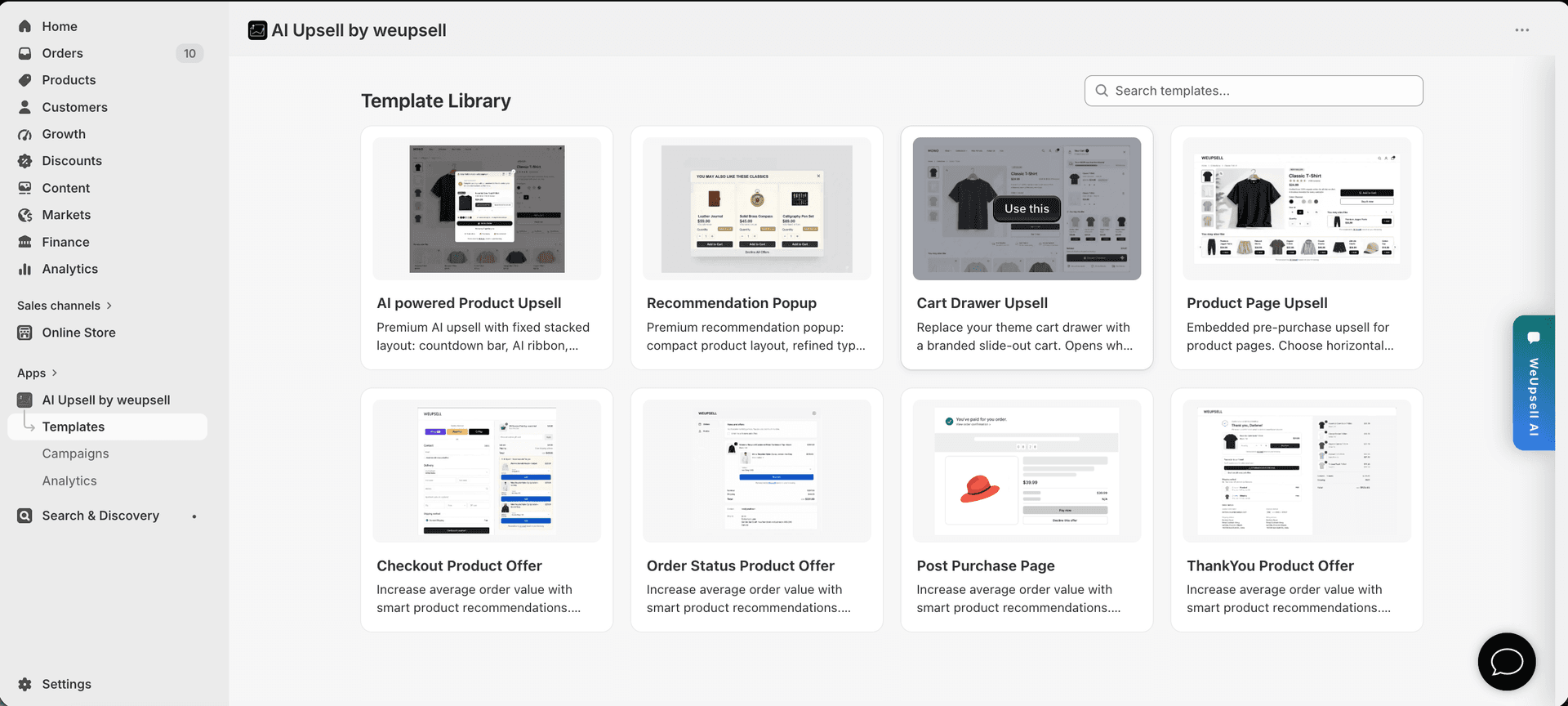
- Click Templates in the left sidebar.
- Select Cart Drawer Upsell from the Template Library and click Use this.
This opens the Cart Drawer editor where you can fully customize your shopping cart experience.
2Step 2: Configure & Customize Cart Drawer Settings, Offers & Design
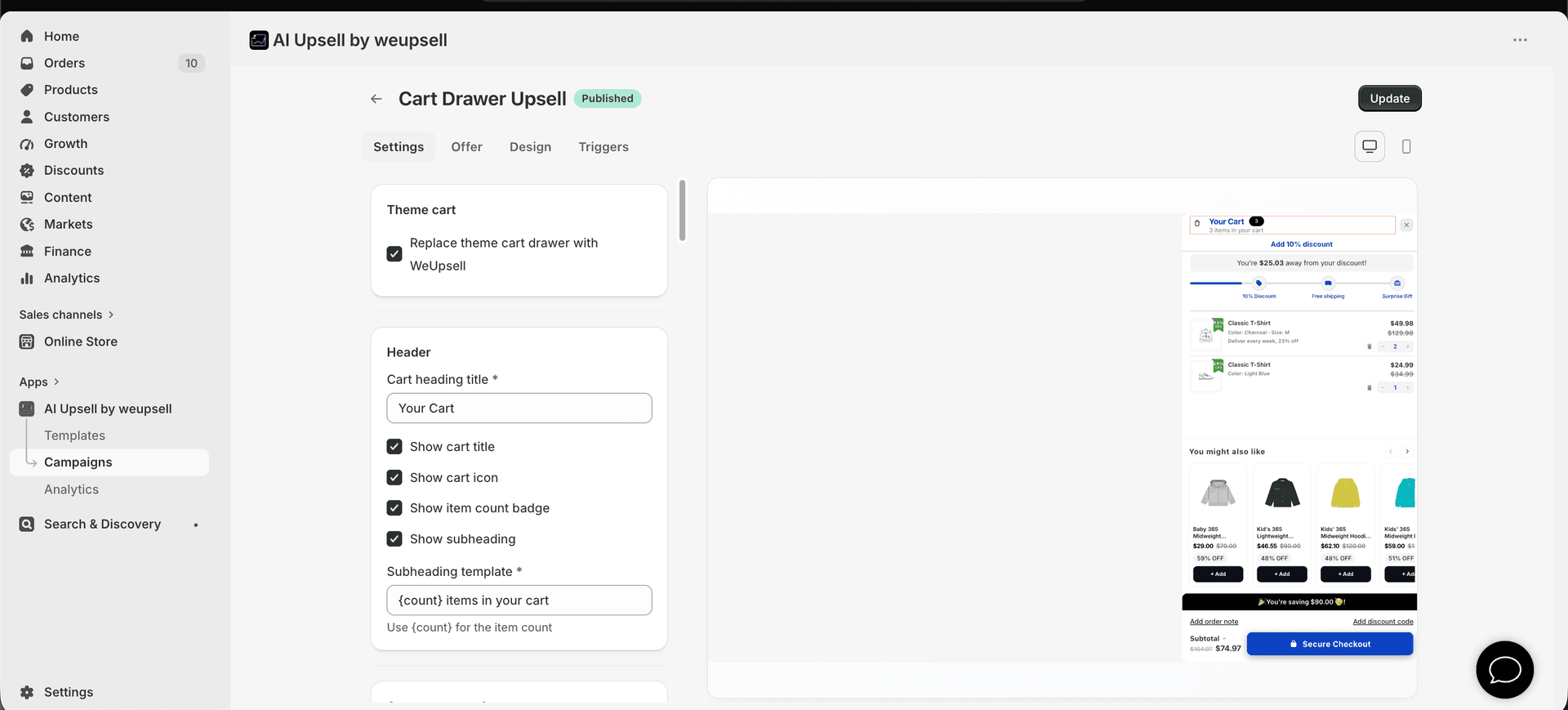
Inside the editor, manage your cart drawer layout across four core configuration tabs:
⚙️ Settings Tab (Cart Structure)
- Theme Cart: Check Replace theme cart drawer with WeUpsell to enable the full WeUpsell cart experience.
- Header: Customize Cart heading, cart icon, item count badge, subtitle template, and close button.
- Additional Sections: Enable and configure Progress Bar, Tiered Rewards, Cart Items, Discount Code input, Order Notes, Checkout Button, and Trust Badges.
✨ Offer Tab (AI Product Recommendations)
Configure how recommendations are generated inside the cart:
- Recommendation Source: Select Recommended by WeUpsell AI (Recommended for highest AOV), Related Products, Complementary Products, Manual Product Selection, or Collection Products.
- Layout & Controls: Customize number of products displayed, products per row, variant selectors, quantity controls, pricing displays, and Add to Cart buttons.
🎨 Design Tab (Branding & Colors)
Personalize the visual appearance to match your store branding:
- Customize header colors, background tones, product card styling, CTA buttons, typography, borders, corner radius, and progress bar highlights.
Tip: Enable Replace theme cart drawer with WeUpsell and use Recommended by WeUpsell AI for maximum conversion rates. The live preview updates instantly while you edit.
3Step 3: Configure Triggers, Publish & Test
Finalize when your cart drawer displays and publish it live to customers:
- Open the Triggers tab: Choose Show on all pages or Show on selected pages. Set cart opening behavior (when customer adds a product, clicks cart icon, or after a specified delay).
- Click Update in the top-right corner to save and publish your AI Cart Drawer.
- Test storefront: Visit your Online Store, add a product to cart, verify the WeUpsell Cart Drawer opens, and test 1-click AI product add-ons.
Note: If this is your first time enabling the WeUpsell Cart Drawer, Shopify may prompt you to enable the Theme App Extension in your active theme settings.
🛠️ Troubleshooting
The WeUpsell Cart Drawer doesn't appear
Verify that the campaign has been updated, Replace theme cart drawer with WeUpsell is checked in Settings, your Online Store theme is published, and the Theme App Extension is enabled in theme customization.
AI recommendations are not showing
Ensure a recommendation source is selected under the Offer tab, recommended products are active and in-stock on Shopify, and products have synced with WeUpsell.
My design changes don't appear on storefront
Click Update again in the top-right editor header, refresh your storefront page, clear your browser cache, or test in an incognito window.
The Add button doesn't work
Check that recommended products are available in stock, variants are valid, and the Online Store sales channel is enabled for those items.
My default Shopify cart drawer still appears
Confirm that Replace theme cart drawer with WeUpsell is enabled in the Settings tab and that Theme App Extension is turned on in your Shopify Theme Editor.
❓Frequently Asked Questions
Does the Cart Drawer work with every Shopify theme?
Yes. WeUpsell is engineered to seamlessly integrate with all standard Online Store 2.0 Shopify themes.
Can I display manual product recommendations instead of AI?
Yes. In the Offer tab, you can select Manual Product Selection or Collection Products to specify exact upsell items.
Can I customize the cart drawer design?
Yes. You can customize nearly every section including header styles, product cards, buttons, fonts, progress bars, and rewards in the Design tab.
Can I replace my existing Shopify cart drawer?
Yes. Simply enable Replace theme cart drawer with WeUpsell in Settings, and WeUpsell will handle all cart drawer interactions.
💬 Need Help?
If you need any help setting this up, contact our support team. We're happy to walk you through the steps or answer your questions.