

📋 Requirements
Before you begin, make sure you have the following:
- ✓WeUpsell – AI Upsell & Cross Sell is installed.
- ✓Your Shopify products have been synced with WeUpsell.
- ✓Your Online Store theme is published.
- ✓The WeUpsell Theme App Extension is enabled.
1Step 1: Open the Product Page Upsell Template
To start configuring Product Page recommendations:
- Open your Shopify Admin.
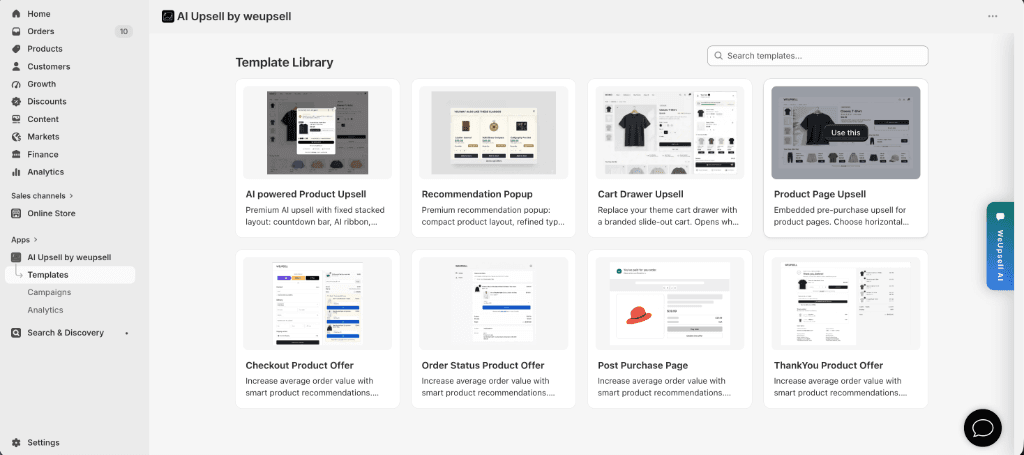
- Navigate to Apps → AI Upsell by WeUpsell.
- Click Templates in the left sidebar.
- Select Product Page Upsell from the Template Library and click Use this.
This opens the Product Page editor where you can customize your recommendation widget.
2Step 2: Configure the Product Recommendation Layout
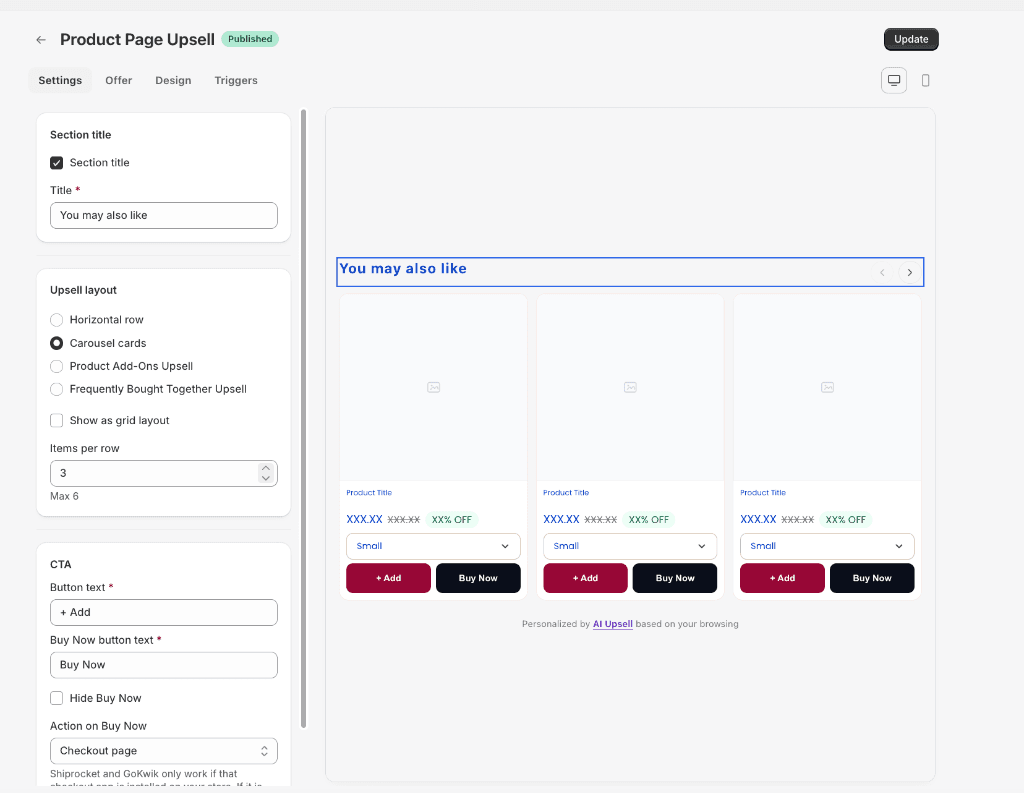
The Settings tab lets you customize the appearance and behavior of your recommendation section:
📌 Section Title
- Show or hide section title and set custom recommendation heading (e.g. You may also like).
📐 Layout Options
Choose how recommendations should appear on your product page:
- Horizontal Row: Single line horizontal recommendations layout.
- Carousel Cards: Interactive scrollable card carousel.
- Product Add-Ons Upsell: Compact add-on checklist items.
- Frequently Bought Together Upsell: Bundle recommendations with single CTA.
🔘 Call-to-Action (CTA) Settings
- Configure Add button text (e.g.
+ Add), Buy Now button text, Hide Buy Now button option, and Buy Now action (e.g. redirect to checkout page).
Tip: Carousel Cards are recommended for stores with a large catalog because they display more products in a compact space. The live preview updates instantly while you edit.
3Step 3: Configure Product Recommendation Rules
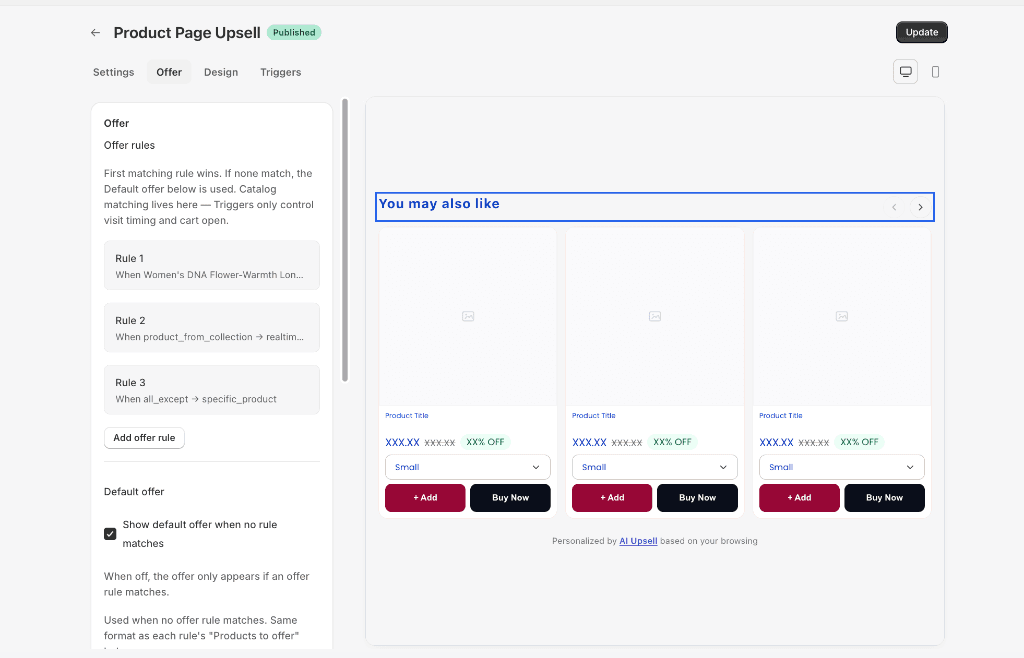
Open the Offer tab to control which products are recommended to shoppers:
- Offer Rules: Create multiple targeted rules based on individual products, collections, product tags, product types, vendors, cart conditions, or customer conditions.
- Rule Priority: WeUpsell evaluates rules from top to bottom and applies the first matching rule.
- Default Offer: If no rule matches, the Default Offer is used (if enabled).
Recommendation: For the best shopping experience, enable the Default Offer so customers always see recommendations even if custom rules don't apply.
4Step 4: Customize the Design
Open the Design tab to personalize the visual appearance of your recommendation section:
- Customize card styling, button colors, product image aspect ratios, typography, price formatting, discount badges, variant dropdown selectors, button spacing, borders, corner radiuses, and mobile responsiveness.
5Step 5: Configure Display Triggers
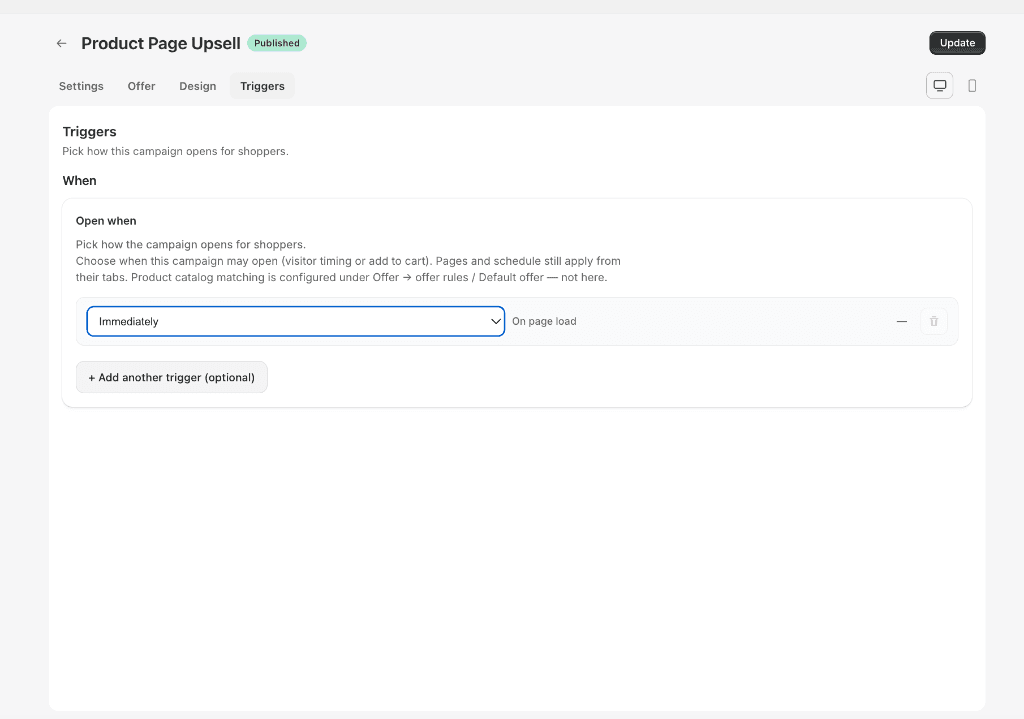
Open the Triggers tab to decide when the recommendation section becomes visible:
- Visitor Timing: Immediately (on page load), After a delay, After scroll, Exit intent, After inactivity, On element click, or On element hover.
- Cart Trigger: Popup trigger on Add to Cart.
6Step 6: Update, Add App Block & Save Theme
Follow these final steps to activate your campaign on Shopify:
- Update Campaign: Click Update in the top-right corner of the WeUpsell editor.
- Open Shopify Theme Editor: Go to Shopify Admin → Online Store → Themes → Customize.
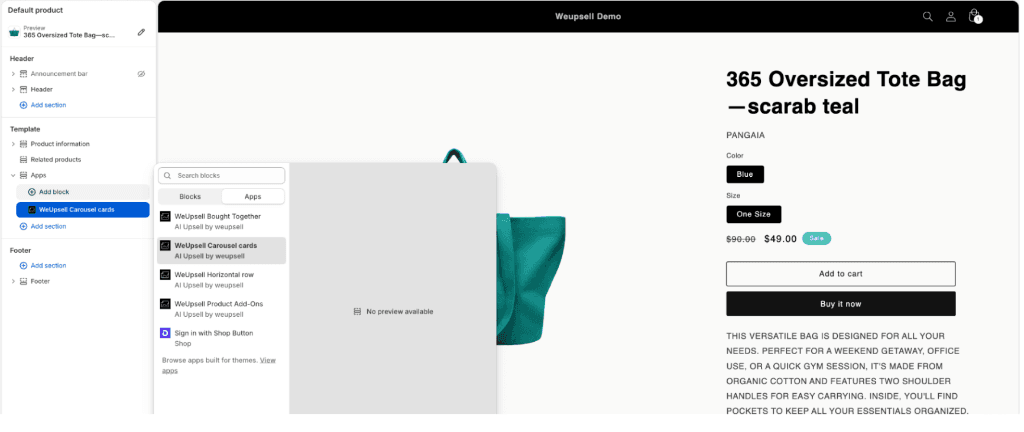
- Add WeUpsell App Block: Open your Default Product template. Under Product Information, click Add block, select Apps tab, and choose the block matching your campaign layout (WeUpsell Horizontal Row, WeUpsell Carousel Cards, WeUpsell Product Add-Ons, or WeUpsell Bought Together).
- Position Block: Drag the WeUpsell app block to your preferred position (e.g. below Buy Buttons, below Variant Picker, or above Description).
- Save Theme: Click Save in the Shopify Theme Editor header.
🛠️ Troubleshooting
The recommendation block isn't visible
Check that the Product Page campaign has been updated, the matching WeUpsell app block was added in Theme Editor, Shopify Theme changes are saved, and Theme App Extension is enabled.
No products are being recommended
Verify that your products have synced with WeUpsell, offer rules are configured correctly, and the Default Offer is enabled.
The wrong layout is displayed
Ensure the Shopify app block added in Theme Editor matches your campaign layout (e.g. Carousel Cards → WeUpsell Carousel Cards).
Design changes don't appear
Click Update again in WeUpsell, refresh your storefront, clear browser cache, or test in an incognito window.
Buy Now button doesn't work
Check that Buy Now action is configured under Settings, product variants are valid, and items are in stock.
❓Frequently Asked Questions
Can I create different recommendations for different products?
Yes. Use Offer Rules in the Offer tab to set product-specific, collection-specific, or tag-based recommendation campaigns.
Can I show AI-powered recommendations?
Yes. WeUpsell supports AI-powered recommendations as well as manual, related, complementary, and custom product offers.
Can I display different layouts?
Yes. Choose from Horizontal Row, Carousel Cards, Product Add-Ons, or Frequently Bought Together, and add the matching app block in Shopify Theme Editor.
Can I control when recommendations appear?
Yes. The Triggers tab allows you to show recommendations immediately on page load, after a delay, on scroll, exit intent, inactivity, element click, hover, or on add to cart.
💬 Need Help?
If you need any help setting this up, contact our support team. We're happy to walk you through the steps or answer your questions.