

📋 Before You Start
- ✓WeUpsell AI Upsell & Cross Sell is installed.
- ✓You have created one or more collections in Shopify.
- ✓The selected collection contains active products.
- ✓Your recommendation template has already been created.
1Step 1: Open Your Recommendation Template
To edit product choices inside your template:
- Open your Shopify Admin.
- Go to Apps → AI Upsell by WeUpsell.
- Open Templates.
- Select the recommendation template you want to edit (for example, Product Page Upsell, Cart Drawer, or another template).
The template editor will open.
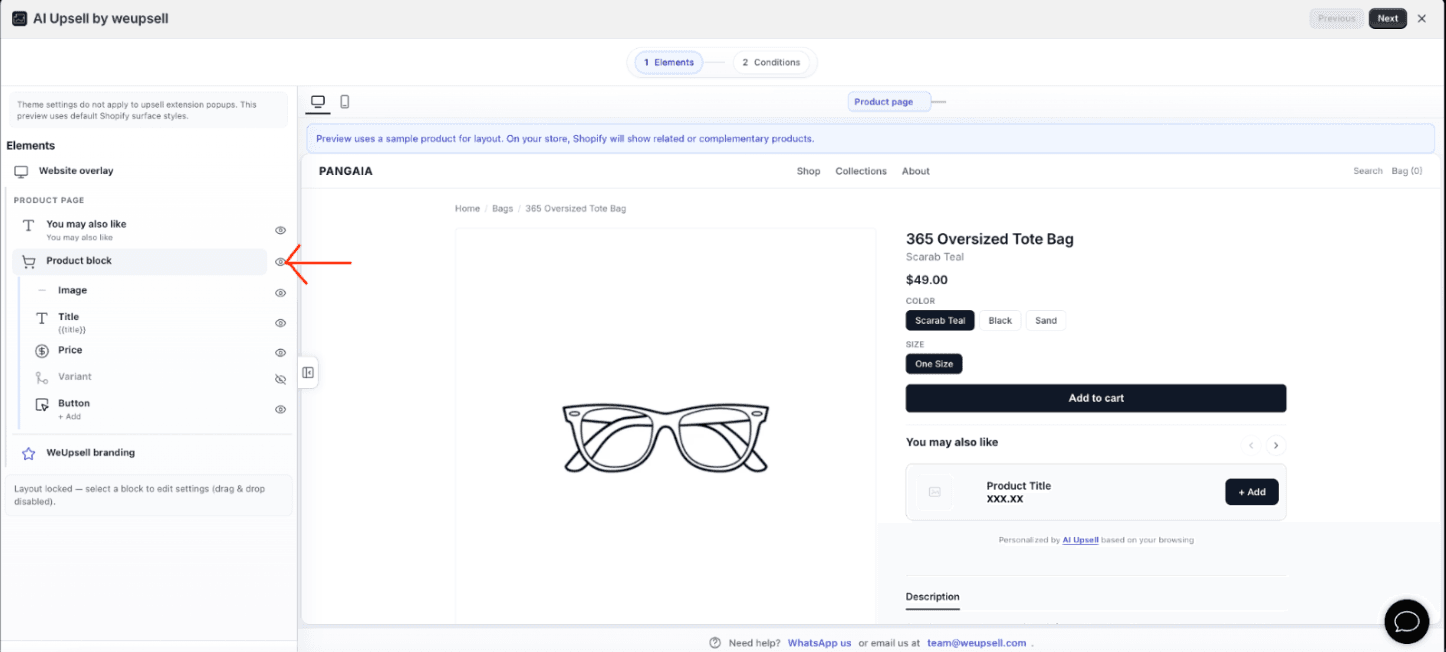
2Step 2: Open the Product Block Settings
In the left sidebar menu of the editor layout:
- Expand the recommendation widget configuration hierarchy.
- Click Product block.
This section contains all settings for selecting which products will be recommended to storefront shoppers.
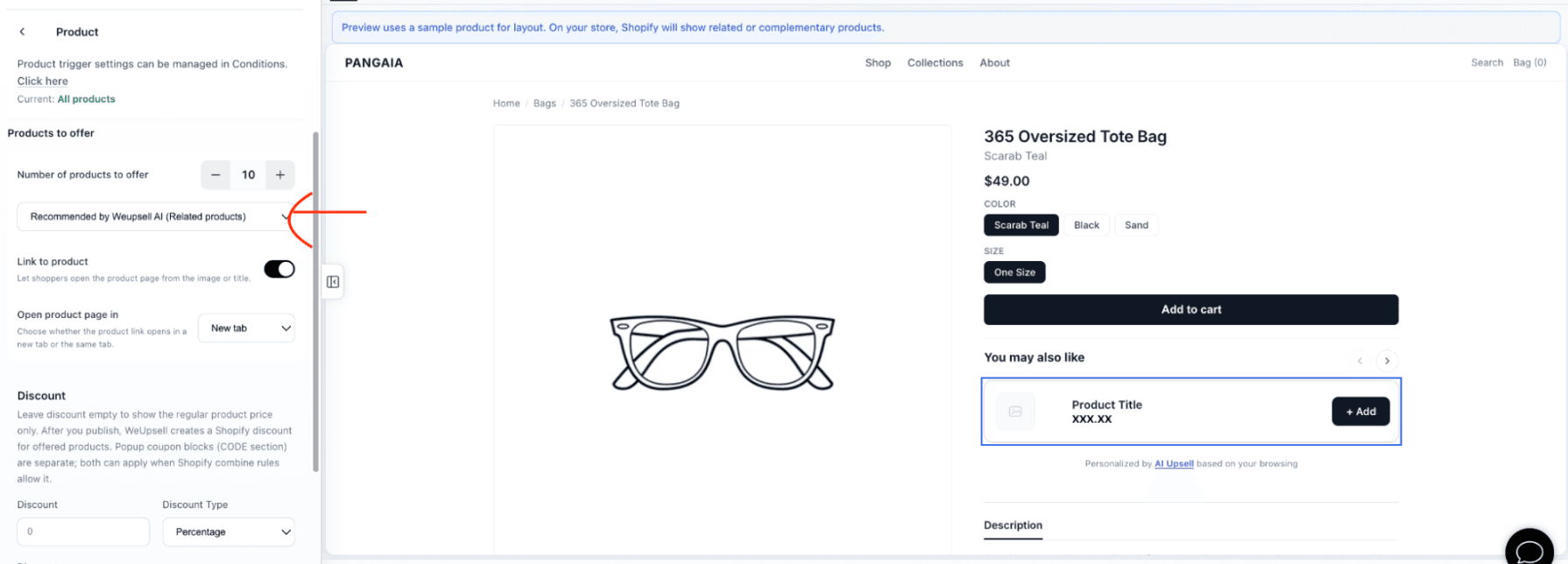
3Step 3: Choose the Recommendation Source
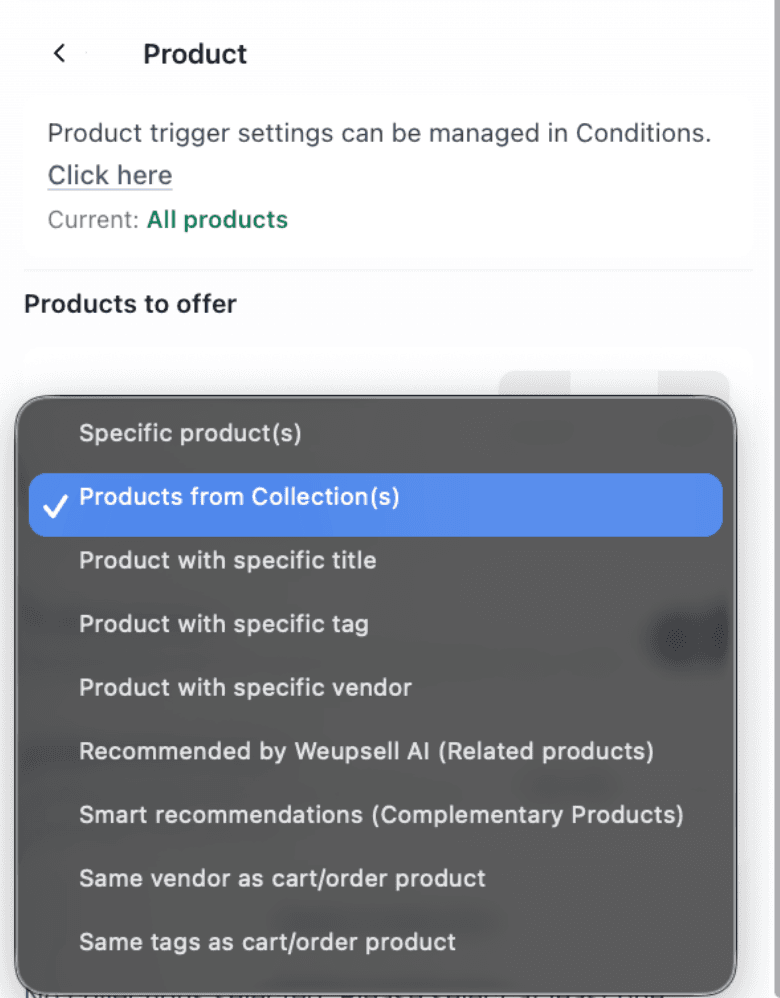
Scroll down to the Products to offer section. From the recommendation source dropdown menu, select:
Products from Collection(s)
This tells WeUpsell to pull product recommendations from one or more Shopify collections instead of relying on default AI-related recommendations.
Tip: You can switch back to Recommended by WeUpsell AI (Related products) at any time if you want the algorithm to choose recommendations automatically.
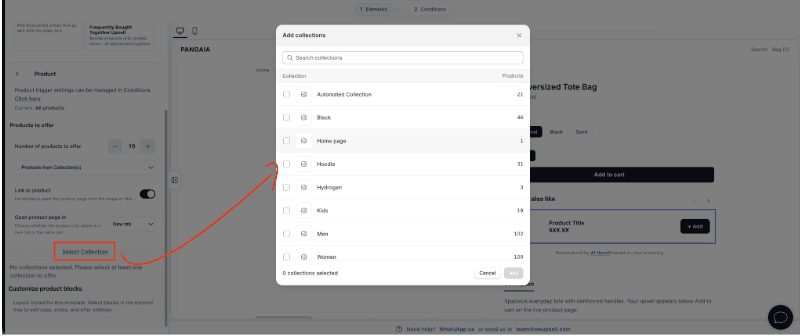
4Step 4: Select Your Shopify Collection
After selecting Products from Collection(s):
- Click Select Collection.
- A list of your Shopify store's collections will appear in a popup modal.
- Select one or multiple collections by checking the boxes.
- Click Add.
The selected collections will now be used as the active source for recommendations.
5Step 5: Configure Additional Settings
You can customize the recommendation behavior further:
- Number of Products to Offer: Choose how many items to display in the widget.
- Link to Product: Enable this if customers should be able to click product images/titles to visit product pages.
- Open Product Page In: Choose between opening in the Same tab or a New tab.
6Step 6: Save and Publish
Once you've finished configuring the recommendation source:
- Click Save & Publish in the top-right.
- Review your changes in the verification summary.
- Click Publish.
Your recommendation template will be updated with the selected collections on live pages.
7Step 7: Preview Your Store
Navigate to your live storefront and locate the page where the recommendation widget is rendered. Verify:
- Products from the selected collection are displayed correctly.
- The correct number of products appears.
- Clicking a recommendation opens the correct product URL.
✓ Verify Your Setup
- ✓Products from the selected collection are displayed.
- ✓The correct number of products appears.
- ✓Product images, titles, prices, and CTA buttons are visible.
- ✓Clicking a recommendation opens the correct product page.
🛠️ Troubleshooting
No products are displayed in the recommendation block
Make sure at least one collection has been selected, verify the collection contains active products inside your Shopify Admin, and ensure the products are available on the Online Store sales channel.
The wrong products are showing
Confirm that Products from Collection(s) is selected as the active recommendation source, verify you've checked the correct collection, and save/publish the template after modifying choices.
Recommendations don't update on the storefront
Click Save & Publish after editing the template, refresh your storefront, clear browser cache, and confirm that the latest version of the theme template has been saved in Shopify.
💡 Best Practices
- •Use popular Shopify collections such as Best Sellers, New Arrivals, Accessories, or Seasonal Collections.
- •Display 4–8 products for a rich, scrollable customer experience.
- •Group products that naturally complement each other (e.g. recommend socks for shoes).
- •Keep collections updated in Shopify so storefront widgets dynamically update too.
- •Use collection-based recommendations when you want full manual control over upsells instead of relying on AI algorithms.
💬 Need Help?
If you need any help setting this up, contact our support team. We're happy to walk you through the steps or answer your questions.