

📋 Requirements
Before you begin, make sure you have the following:
- ✓Shopify Plus plan (required for Checkout UI Extensions)
- ✓The WeUpsell – AI Upsell & Cross Sell app must be installed
- ✓Shopify Checkout Extensibility enabled
1Step 1: Open the Template Library
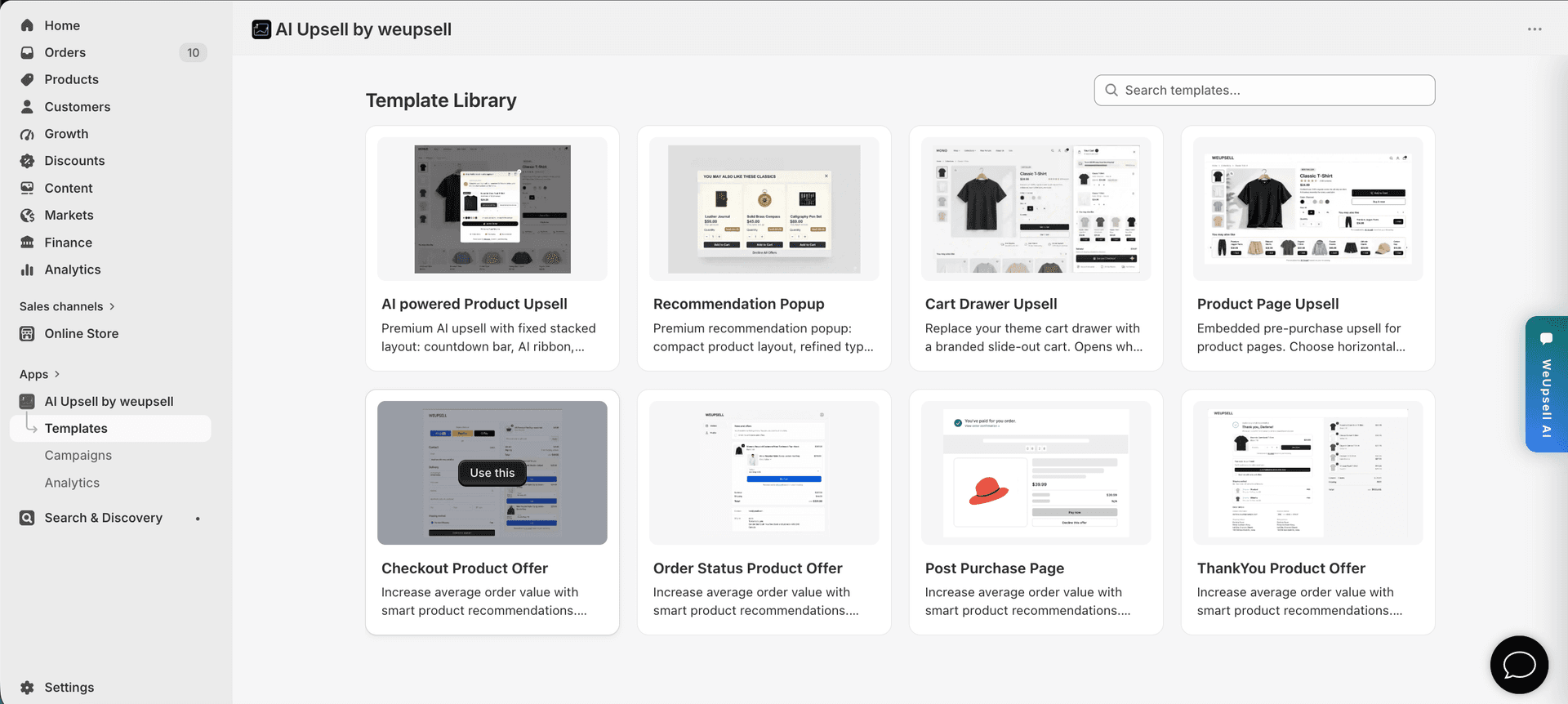
Start by choosing the Checkout template inside WeUpsell:
- Open AI Upsell by weupsell from your Shopify Admin.
- Go to Templates to open the Template Library.
- Find Checkout Product Offer in the template grid.
- Hover the card and click Use this.
This opens the editor so you can customize how product recommendations appear on your Shopify Checkout page.
2Step 2: Customize the Offer in the Editor
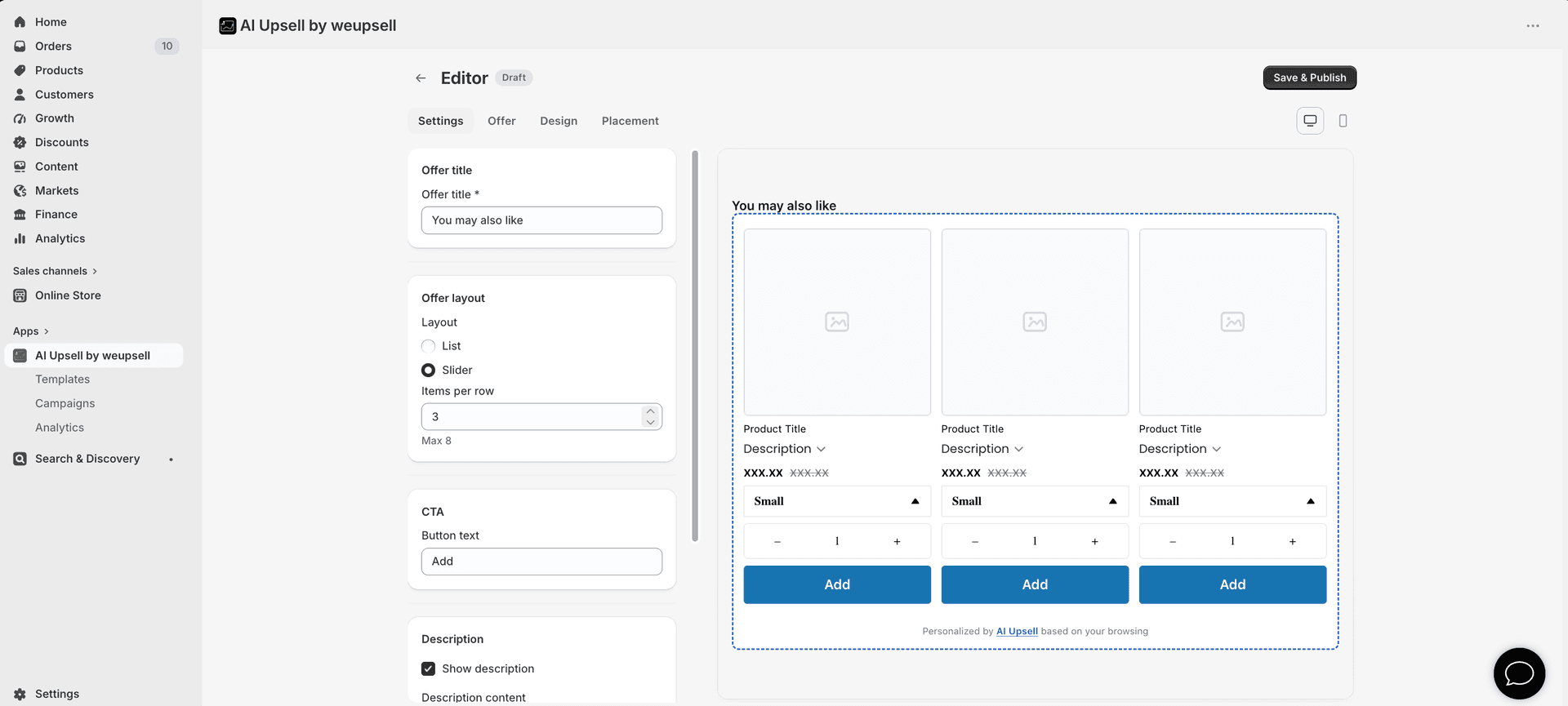
In the Editor, open the Settings tab to configure how the recommendation widget looks and behaves. You can adjust:
- Offer title — the heading shoppers see (for example, "You may also like")
- Offer layout — choose List or Slider, and set how many items appear per row (up to 8)
- CTA button text — customize the button label (for example, "Add")
- Description — show or hide the product description and choose which content to display
Use the desktop and mobile preview toggles to check how the widget looks before publishing. You can also explore the Offer, Design, and Placement tabs for additional customization.
Note: The preview uses sample product cards for layout. On your live checkout, WeUpsell automatically shows personalized, related, or complementary products based on the customer's cart.
Important: Shopify Checkout has styling limitations. Fonts, spacing, and several checkout elements are controlled by Shopify and cannot be fully customised.
3Step 3: Publish the Checkout Offer
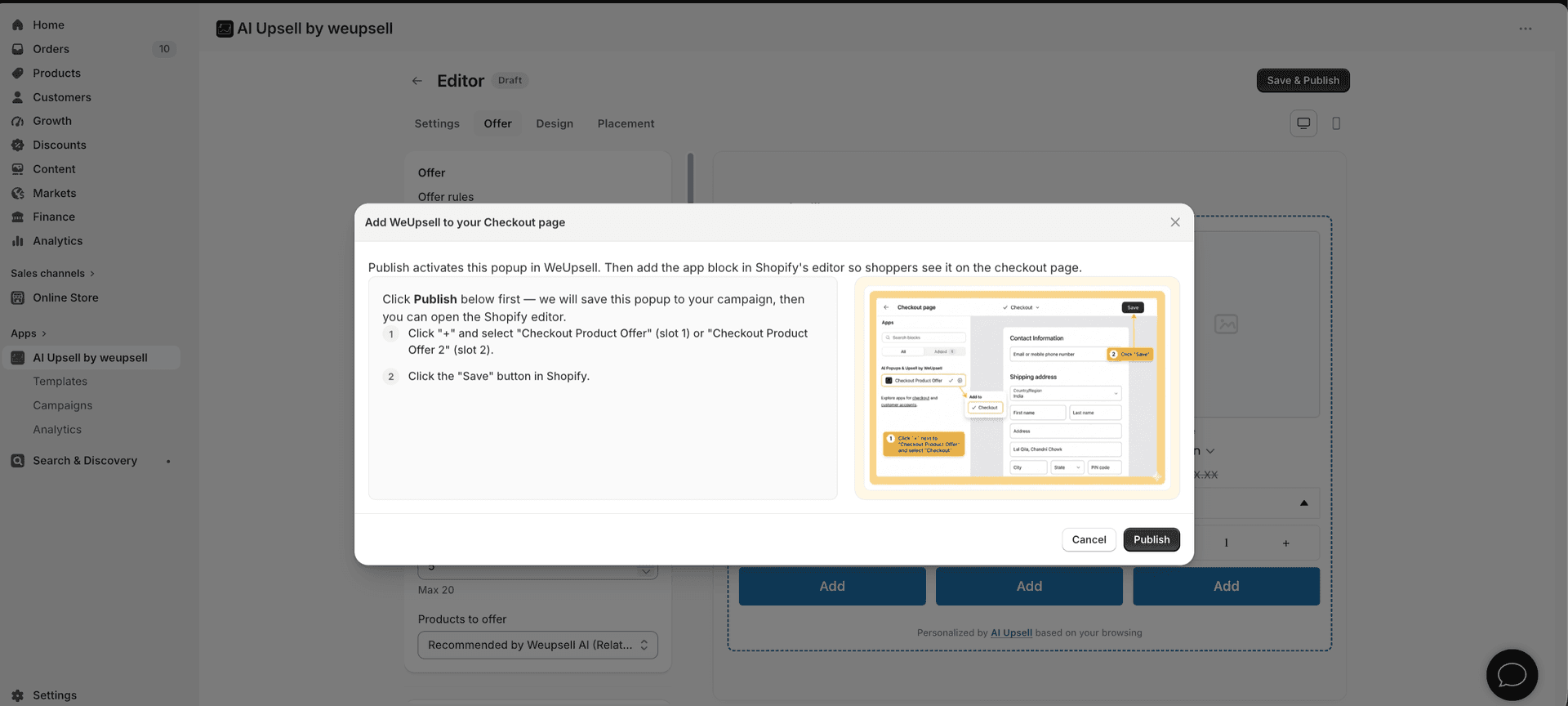
When your settings look right, click Save & Publish. A setup dialog titled Add WeUpsell to your Checkout page appears with publishing instructions.
- Review the steps shown in the dialog.
- Click Publish at the bottom of the dialog first — this saves the offer in WeUpsell.
- Shopify's Checkout Editor then opens so you can add the app block.
Publishing activates the offer in WeUpsell. Shoppers will only see it after you add the app block in the Shopify Checkout Editor and save.
4Step 4: Add the Checkout Product Offer Block
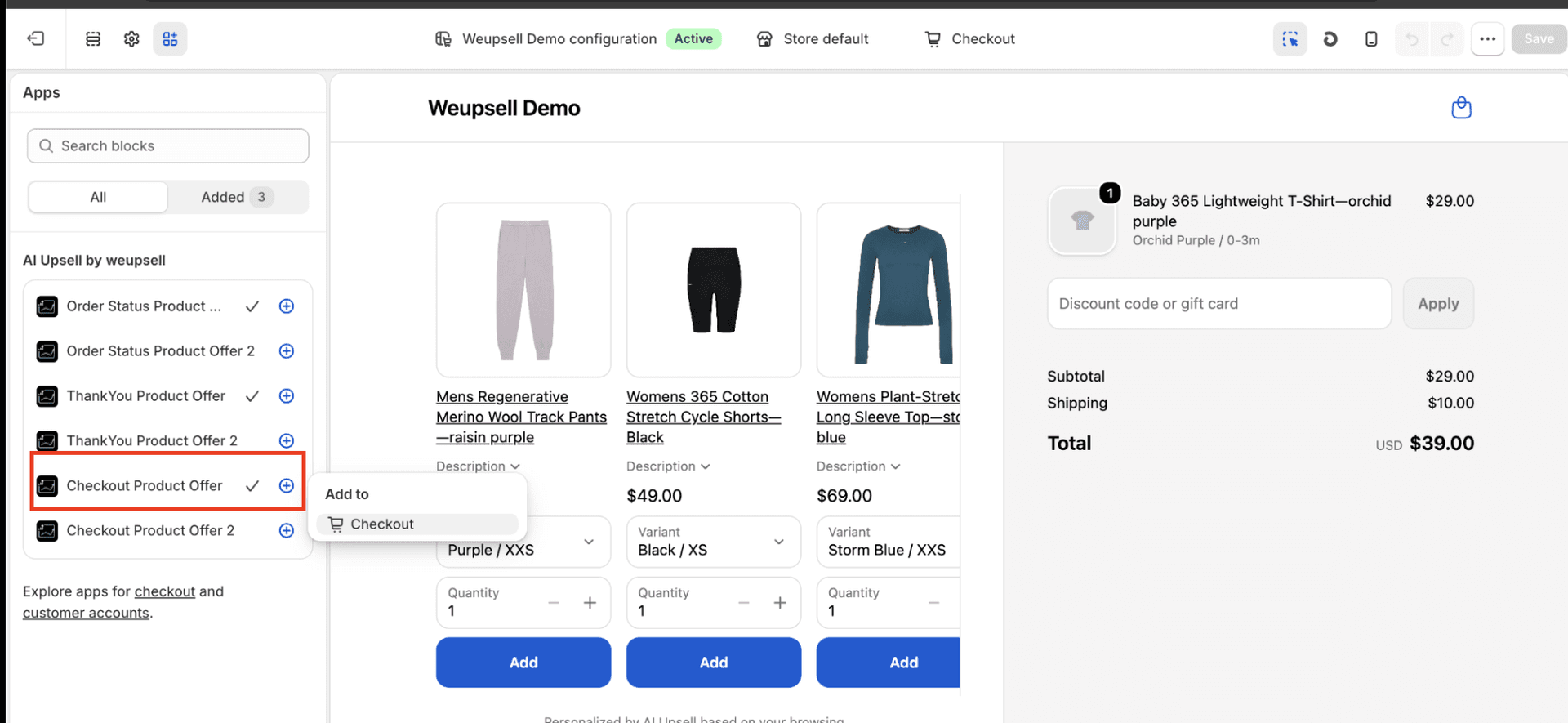
After publishing, Shopify opens the Checkout Editor. There are two ways to add the recommendation block to checkout.
Option 1 (Recommended)
- Open the Apps panel in the left sidebar.
- Under AI Upsell by weupsell, locate Checkout Product Offer or Checkout Product Offer 2.
- Click the + icon next to the block.
- Select Checkout from the Add to menu.
The app block is added to your checkout layout automatically.
Option 2
If you prefer adding from the page structure:
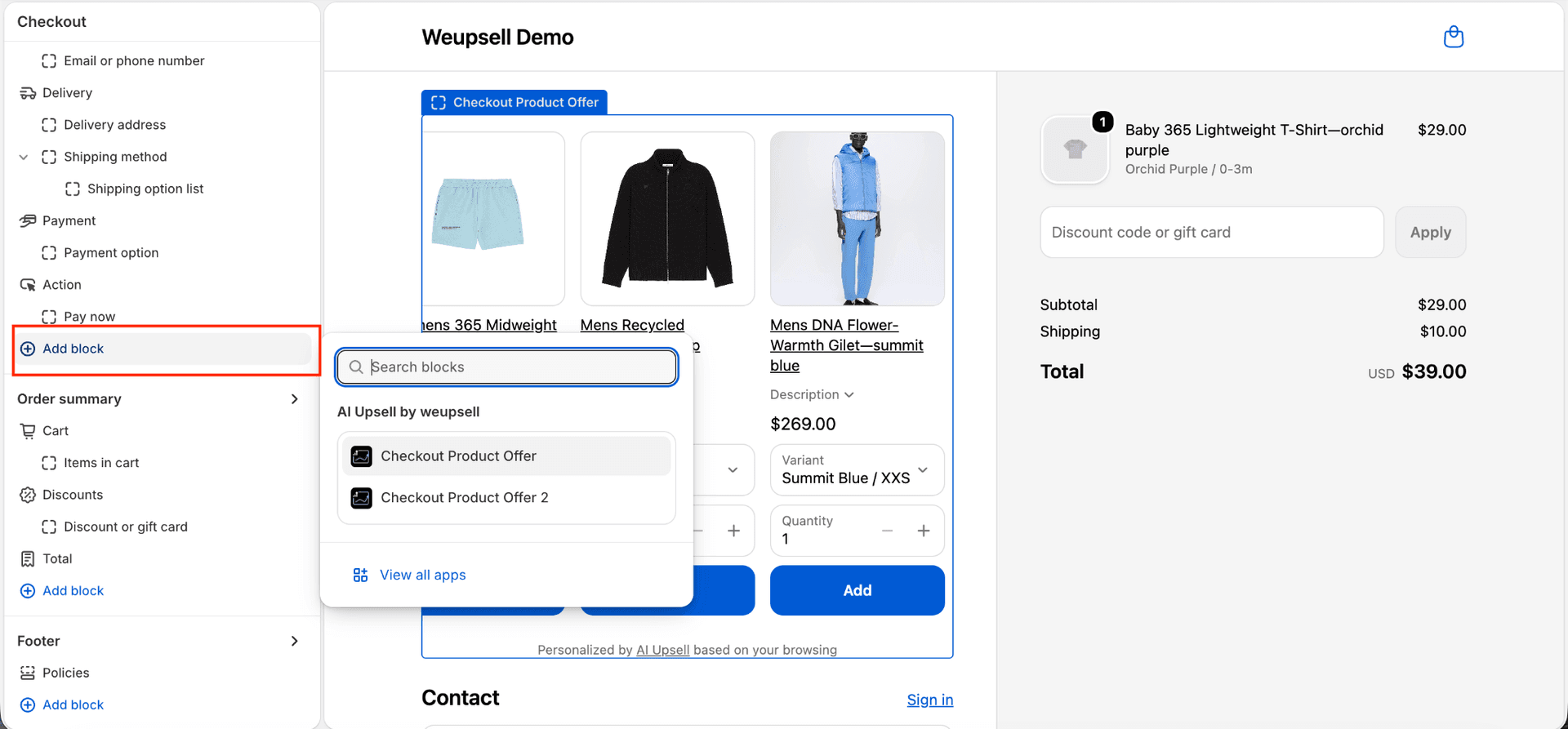
- Click Add block inside the Checkout section.
- In the Search blocks menu, find AI Upsell by weupsell.
- Select Checkout Product Offer or Checkout Product Offer 2.
5Step 5: Position the Widget and Save
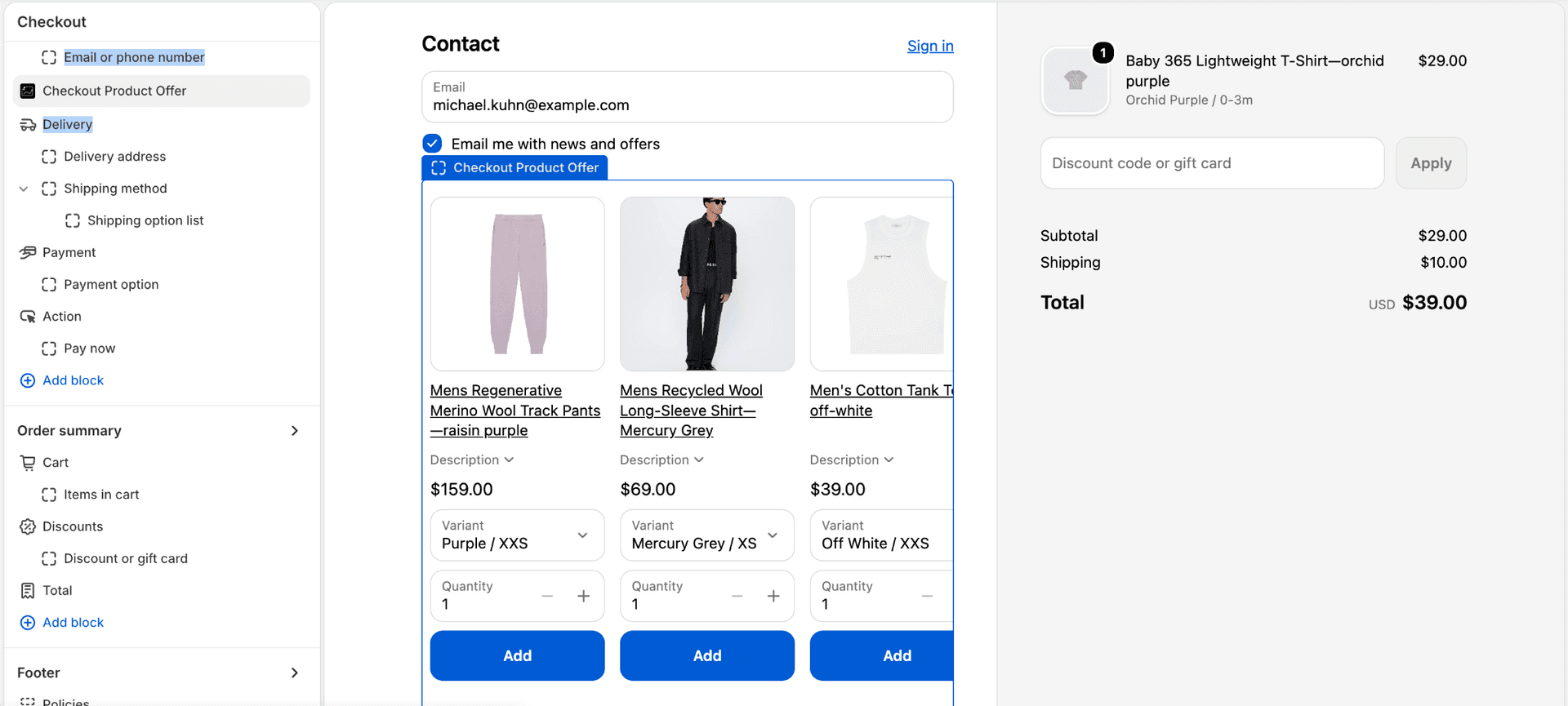
After adding the app block, drag it to where shoppers will notice it without interrupting the checkout flow. Recommended placements include:
- After Email or phone number / Contact
- Between Contact and Delivery
- Between Delivery and Payment
- Before Payment
Then finish setup:
- Click Save in the top-right corner of the Shopify Checkout Editor.
- Wait for Shopify to finish saving your checkout changes.
Your Checkout Product Offer is now live.
✓ Verify Your Setup
To make sure everything is working correctly:
- ✓Add a product to cart and open checkout.
- ✓Confirm the "You may also like" recommendation widget appears.
- ✓Check that products, variants, prices, and the Add button work as expected.
- ✓Add a recommended product and confirm it updates the order summary.
🛠️ Troubleshooting
I can't see the Checkout Product Offer block
Check the following:
- The template was published from WeUpsell (click Publish in the setup dialog, not only Save).
- You're editing the active Checkout configuration in Shopify.
- The WeUpsell app is installed and enabled.
- Your store is on Shopify Plus with Checkout Extensibility enabled.
- Look under Apps → AI Upsell by weupsell for Checkout Product Offer or Checkout Product Offer 2.
The block appears in the editor but not on the live checkout
Try the following:
- Click Save in the Shopify Checkout Editor after adding the block.
- Refresh the checkout page or open it in an incognito window.
- Test with a real cart checkout session instead of relying only on the editor preview.
- Confirm the block is placed in the Checkout section (not only listed under Apps).
The preview shows placeholder products
This is expected. The WeUpsell editor uses sample product cards for layout. On your live checkout, WeUpsell shows personalized recommendations with real product images, pricing, and variants based on the customer's cart.
No recommended products are showing
Check that:
- Products are active and published to the Online Store sales channel.
- Products are in stock and have available variants.
- Your Offer tab settings (AI recommendations, related products, or manual selections) return matching products.
- Excluded products or collections aren't filtering out everything.
Customers can't add the recommended product
Verify:
- The selected variant is available and in stock.
- Inventory tracking isn't blocking the add action.
- The product isn't restricted by Shopify checkout rules or selling plans.
- You're testing on the live checkout after saving, not only in the WeUpsell draft preview.
I published but the Shopify editor didn't open
Go back to WeUpsell, open the Checkout Product Offer, and click Save & Publish again. In the setup dialog, click Publish. If the editor still doesn't open, open Shopify Admin → Settings → Checkout → customize your checkout, then add the WeUpsell block from Apps.
🎉 You're Ready!
Your Checkout Product Offer is now live and ready to recommend products at the most valuable stage of the buying journey—right before customers complete their purchase.
With AI-powered recommendations, you can increase Average Order Value, improve product discovery, and generate more revenue without disrupting the checkout experience.
💬 Need Help?
If you need any help setting this up, contact our support team. We're happy to walk you through the steps or answer your questions.