

📋 Before You Start
- ✓You have installed WeUpsell – AI Upsell & Cross Sell.
- ✓Your Shopify store uses Checkout Extensibility.
- ✓Your store is eligible for Post Purchase Extensions (Shopify plan requirement).
1Step 1: Open the Template Library
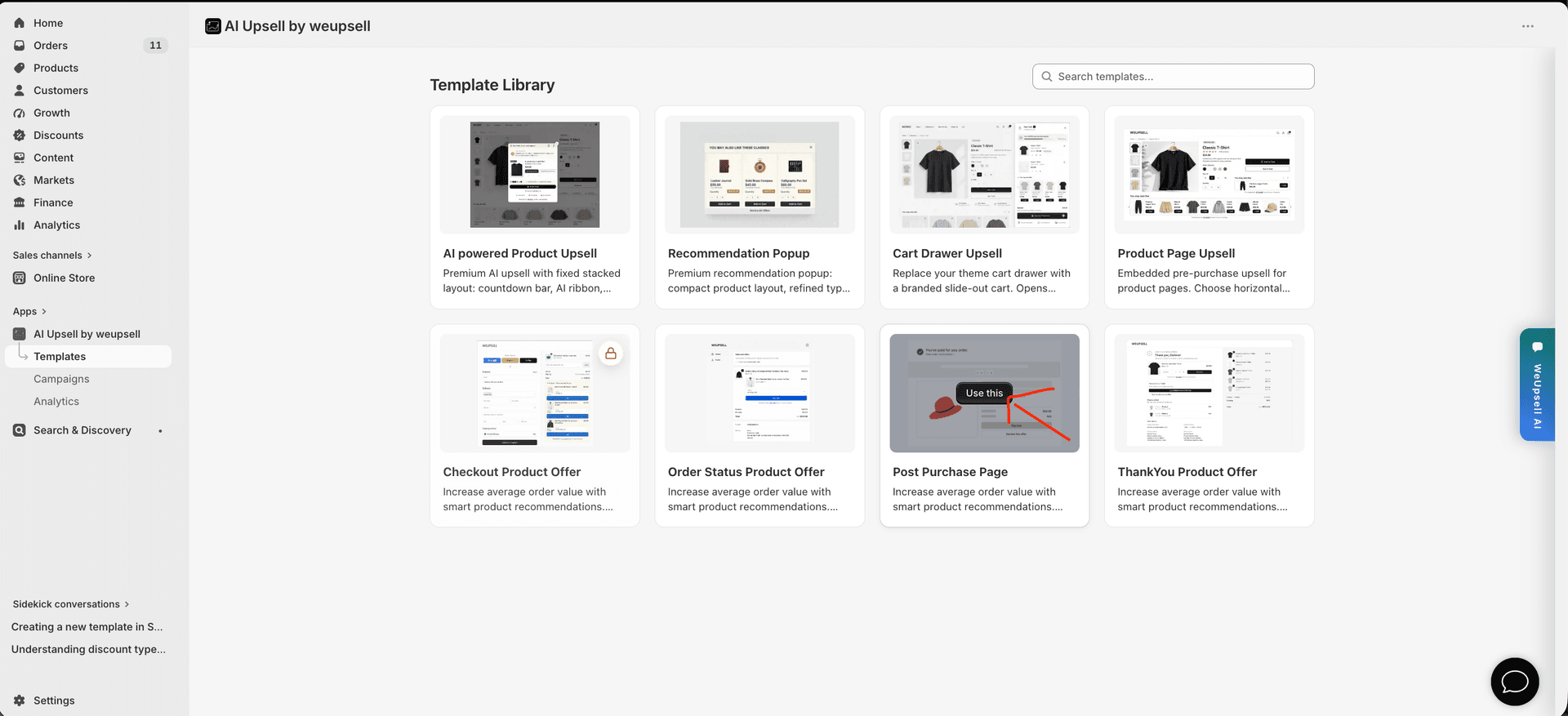
Start by choosing the Post Purchase template inside WeUpsell:
- Open AI Upsell by weupsell from your Shopify Admin.
- Go to Templates to open the Template Library.
- Find Post Purchase Page in the template grid.
- Hover the card and click Use this.
This opens the editor so you can customize the one-click upsell customers see after payment and before the Thank You page.
2Step 2: Customize the Offer in the Editor
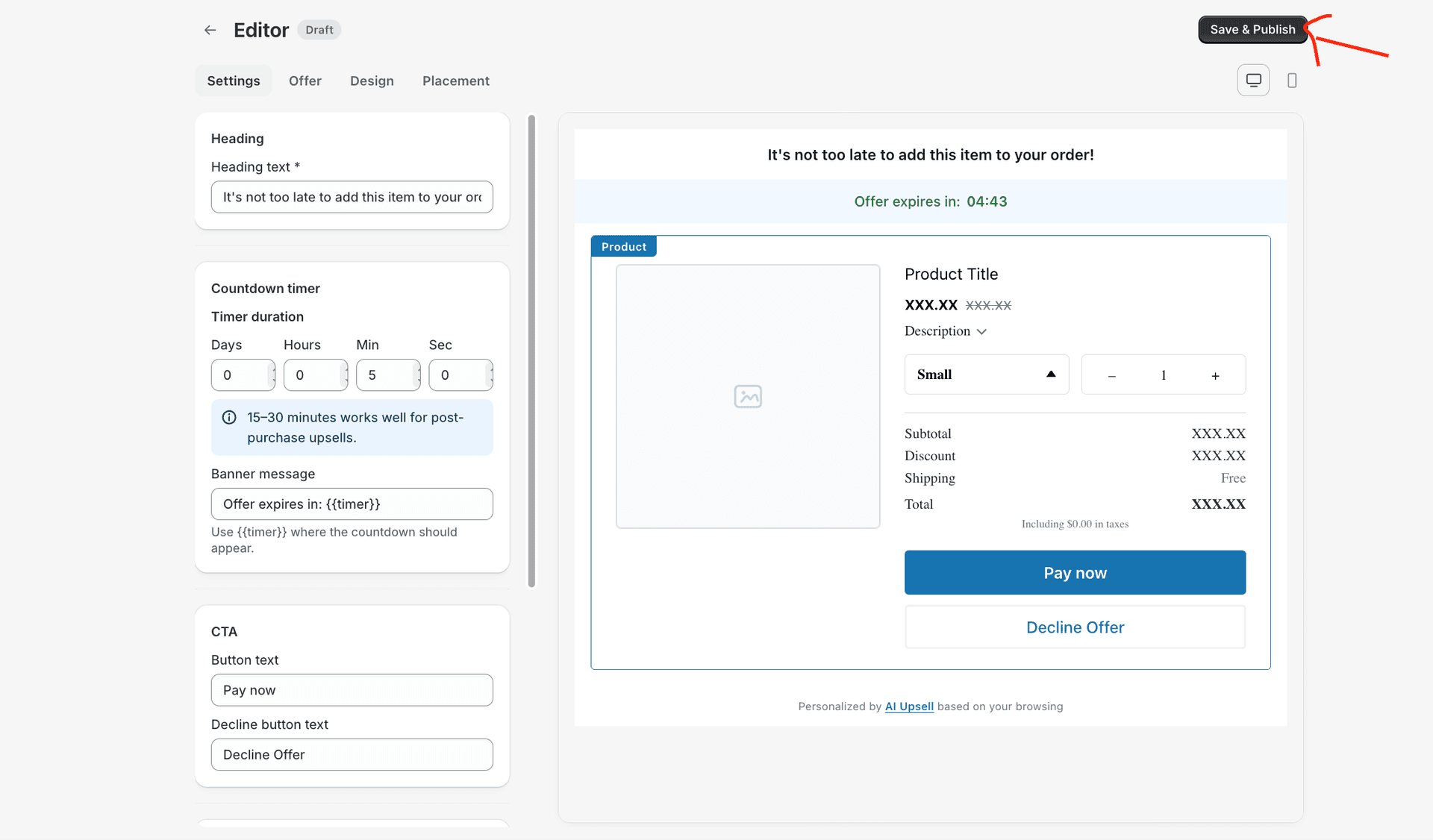
In the Editor, open the Settings tab to configure how your post-purchase offer looks and behaves. You can adjust:
- Heading — the main offer message (for example, "It's not too late to add this item to your order!")
- Countdown timer — set days, hours, minutes, and seconds, plus the banner message (for example, "Offer expires in: {{timer}}"). A duration of 15–30 minutes works well for post-purchase upsells.
- CTA button text — customize the primary button (for example, "Pay now")
- Decline button text — customize the skip option (for example, "Decline Offer")
The live preview shows the product card, variant selector, quantity selector, price breakdown, and both action buttons. Use the desktop and mobile toggles to check the layout. You can also explore the Offer, Design, and Placement tabs for additional customization.
Tip: Keep your offer simple and highlight products that naturally complement the customer's purchase. The preview uses sample product cards for layout; on your live store, WeUpsell shows personalized recommendations.
When your settings look right, click Save & Publish in the top-right corner.
3Step 3: Publish the Template
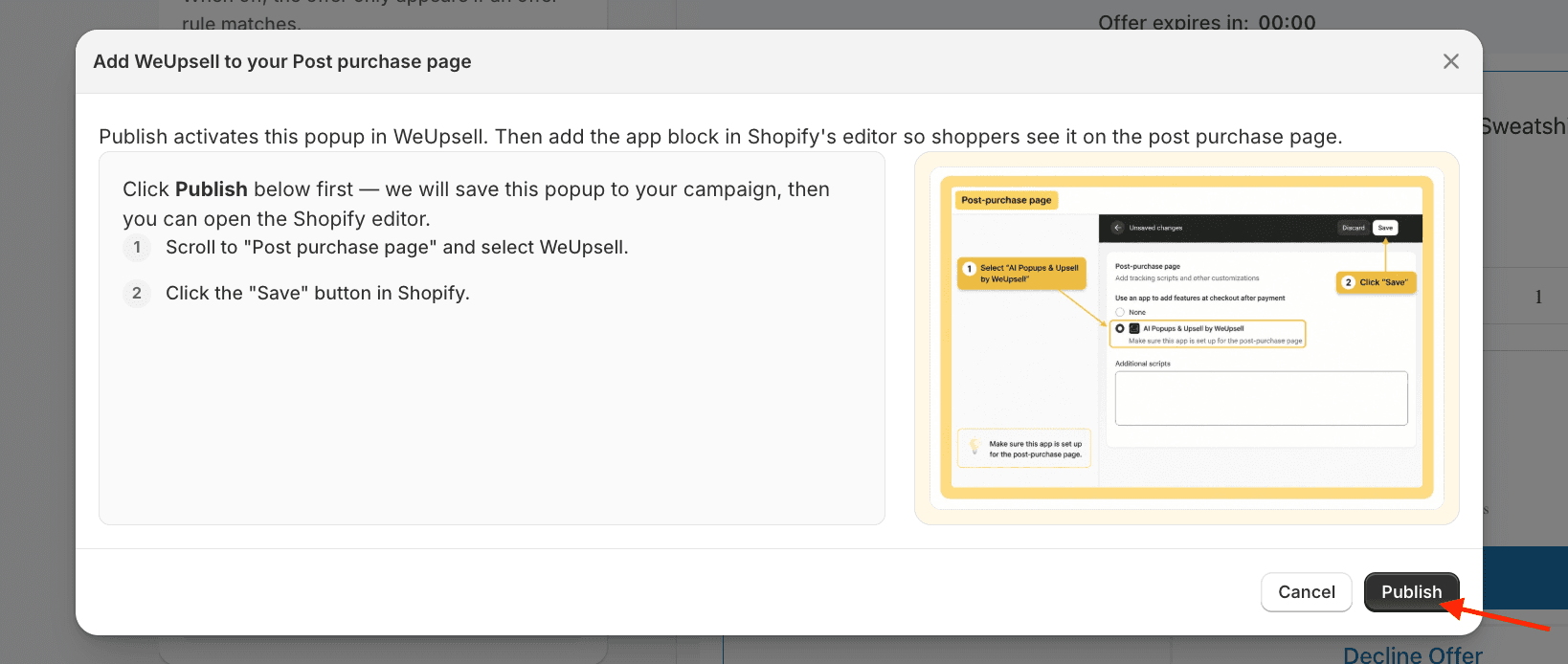
A setup dialog titled Add WeUpsell to your Post purchase page appears with publishing instructions.
- Review the steps shown in the dialog.
- Click Publish at the bottom of the dialog first — this saves the offer in WeUpsell.
- Then continue in Shopify Checkout settings to enable the app on the post-purchase page.
Note: Publishing the template does not automatically enable it inside Shopify. The next steps connect WeUpsell with Shopify's Post Purchase extension.
4Step 4: Open Shopify Checkout Settings
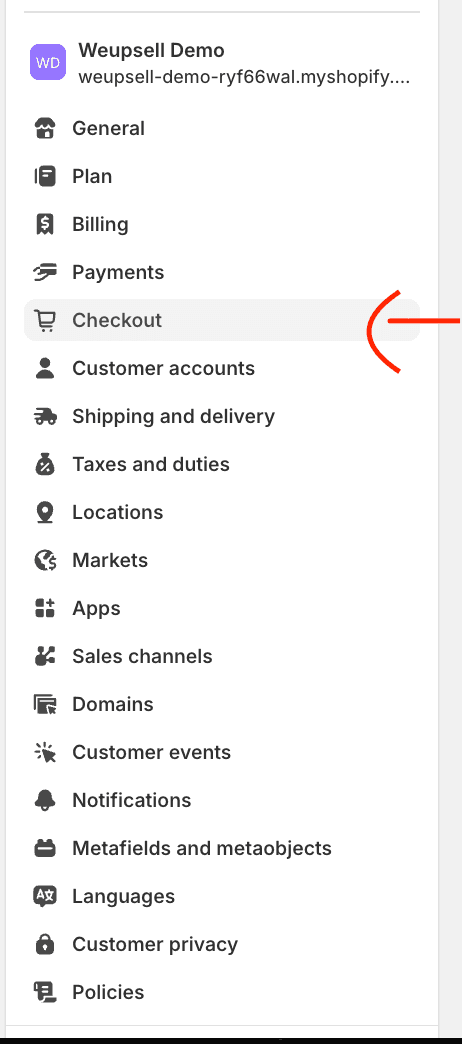
After publishing, open your Shopify Admin settings:
- Go to Settings in your Shopify Admin.
- Click Checkout in the settings sidebar.
This is where you enable WeUpsell for the post-purchase page.
5Step 5: Enable WeUpsell on the Post-Purchase Page
Inside Checkout settings:
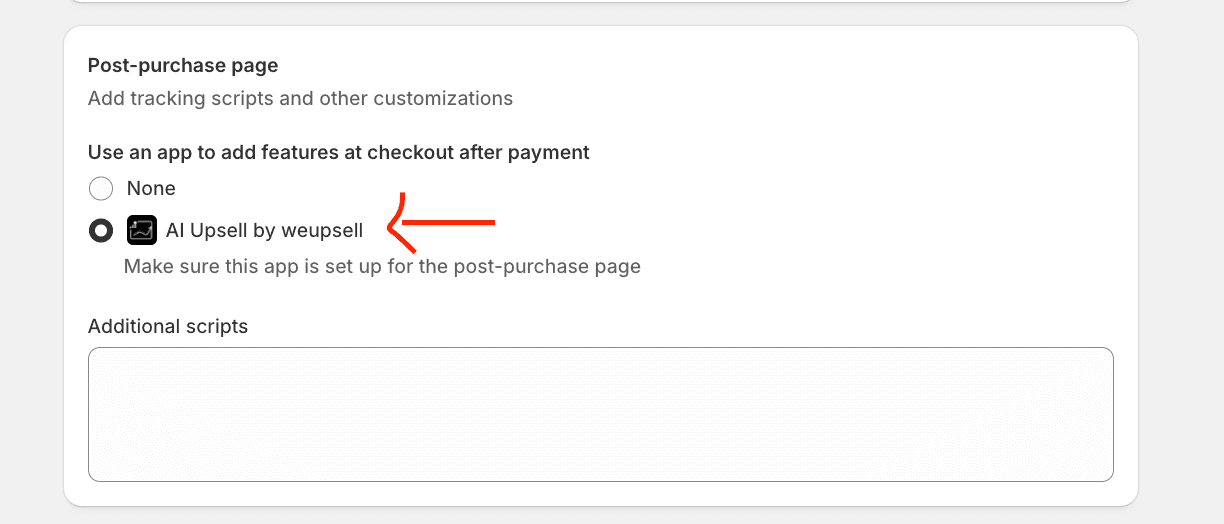
- Scroll down to the Post-purchase page section.
- Under Use an app to add features at checkout after payment, select AI Upsell by weupsell.
- Click Save at the top of the page.
This tells Shopify to display your WeUpsell post-purchase offer to customers right after payment. Make sure the app is set up for the post-purchase page before testing.
6Step 6: Test Your Post Purchase Offer
Place a test order using Shopify's test payment method or a development store. After completing payment, the customer should be redirected to the Post Purchase page and your AI-powered offer should appear before the Thank You page.
✓ Verify Your Setup
Confirm the following details are working correctly:
- ✓The post-purchase offer appears after payment and before the Thank You page.
- ✓The heading, countdown timer, and product details display correctly.
- ✓Variant and quantity selectors function properly.
- ✓Clicking the Pay now button adds the item successfully to the order.
- ✓Clicking the Decline Offer button skips to the Thank You page.
🛠️ Troubleshooting
The Post Purchase offer doesn't appear.
Make sure the template was published from WeUpsell (click Publish in the setup dialog), AI Upsell by weupsell is selected under Settings → Checkout → Post-purchase page, Checkout settings have been saved, and you're testing with a supported payment method on an eligible Shopify plan.
Changes made in the WeUpsell editor aren't visible.
Open WeUpsell, click Save & Publish again, save the Checkout settings once more, and run another test order in an incognito window.
The wrong product offer is displayed.
Verify the products and rules configured in your WeUpsell Offer tab, confirm that the campaign is active, and check that AI recommendations or manual selections return the expected products.
I published but can't find the Checkout settings.
In Shopify Admin, go to Settings → Checkout, scroll to Post-purchase page, select AI Upsell by weupsell, then click Save.
💬 Need Help?
If you need any help setting this up, contact our support team. We're happy to walk you through the steps or answer your questions.