

Introduction
Want to sell more without spending more on ads? One of the easiest ways to do that is by showing your customers a related product right when they're already looking at something they like. That's exactly what a product upsell offer does.
When someone is browsing your product page, they're interested and ready to buy. That's the perfect moment to say — "Hey, this goes really well with what you're looking at."
In this guide, I'll show you how to set up an upsell that automatically shows related and complementary products on your Shopify store — step by step — using a free app called AI Upsell by weupsell. No coding needed. No Shopify Plus required. Just a simple setup that can start boosting your sales today.
Step 1 — Install the App
Go to the Shopify App Store and search for "AI Upsell by weupsell". You'll see the app by Aimbrill Techinfo. It's free and rated 5 stars.
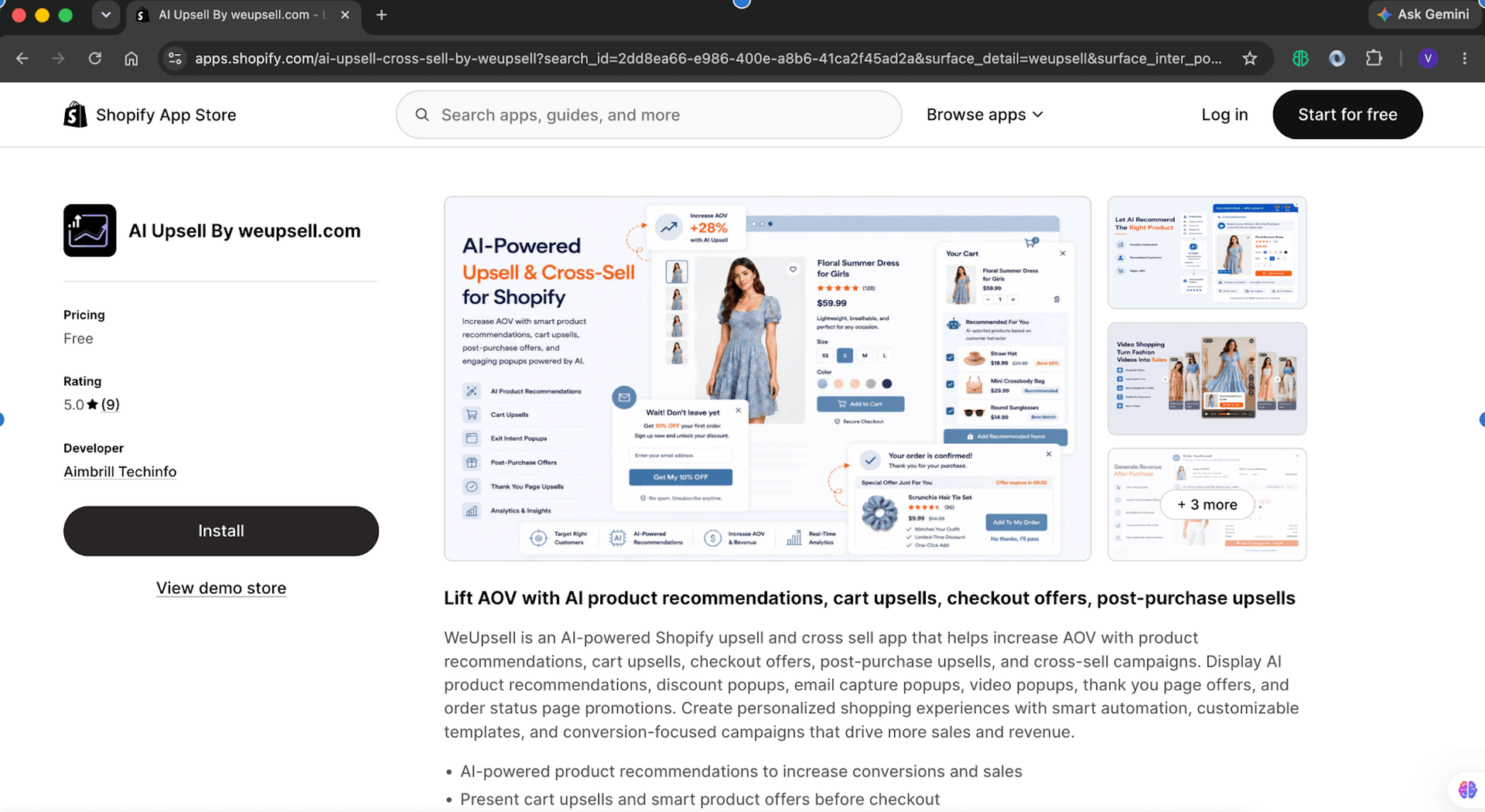
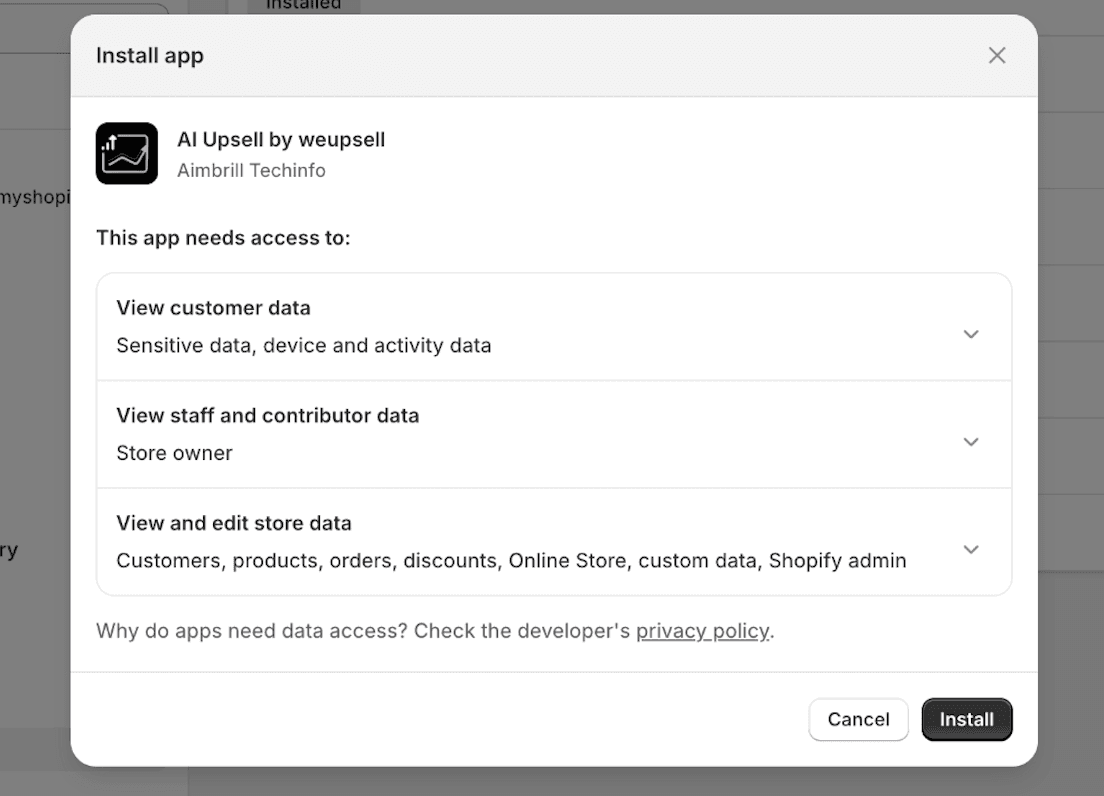
Click "Install". Shopify will ask for permission to let the app access your store. This is normal — the app needs to read your products and show upsell offers to your customers. Click "Install" again to confirm.
Once it's installed, you'll land inside the app dashboard in your Shopify admin. You're ready for the next step.
Step 2 — Create a New Campaign
Inside the app, click on "Campaigns" from the left sidebar. Then click "Create Campaign". A small window will appear asking how you want to start. You'll see two options:
- From templates — Pick a ready-made upsell design and customize it (this is what we'll use)
- Create with AI — Coming soon, not available yet
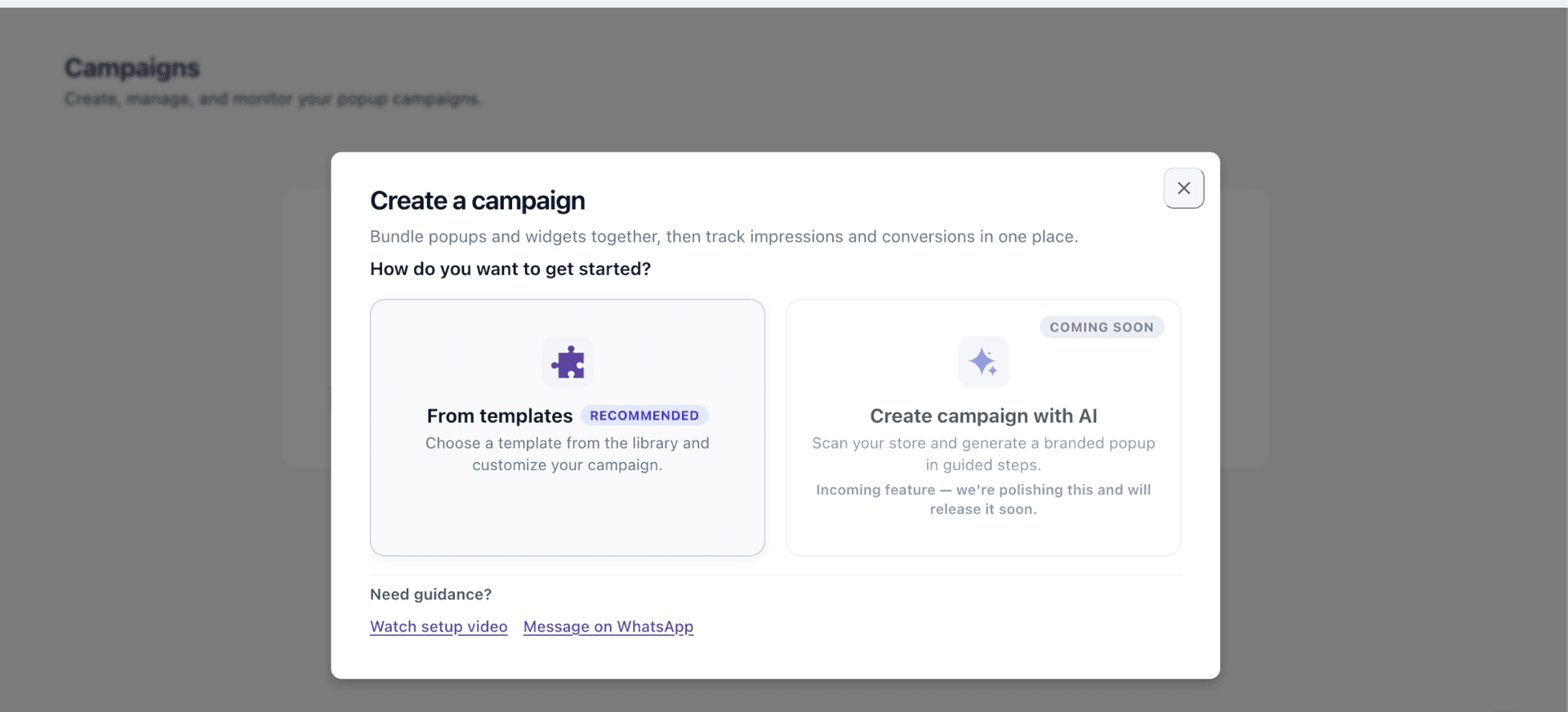
Click "From templates".
Step 3 — Pick the AI Powered Product Upsell Template
The Template Library will open showing ready-to-use upsell templates. Look for the AI powered Product Upsell template in the library.
AI powered Product Upsell — This template is the best choice for showing related and complementary products because it includes everything a customer needs to say yes — a countdown bar, AI ribbon badge, product details, variant selectors (size and color), and a direct buy button, all in one clean upsell layout.
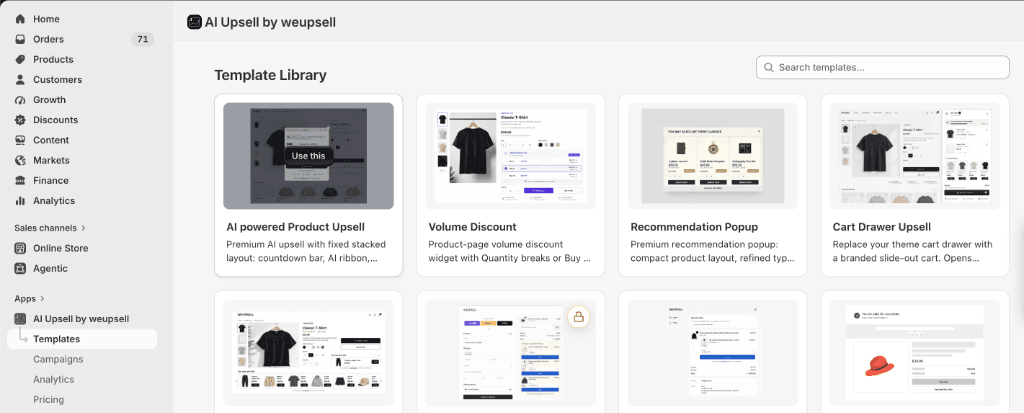
Hover over the AI powered Product Upsell card and click "Use this".
Step 4 — Set Up Your Products
The campaign editor will open. This is where you tell the upsell what products to show. On the left panel, look for the Product section. You'll see two settings to configure:
- Number of products to offer — Keep this at 1. One product at a time works best. Too many options confuse customers and they end up picking nothing.
- Product source — Click the dropdown and choose "Recommended by Shopify (Related/Complementary)".
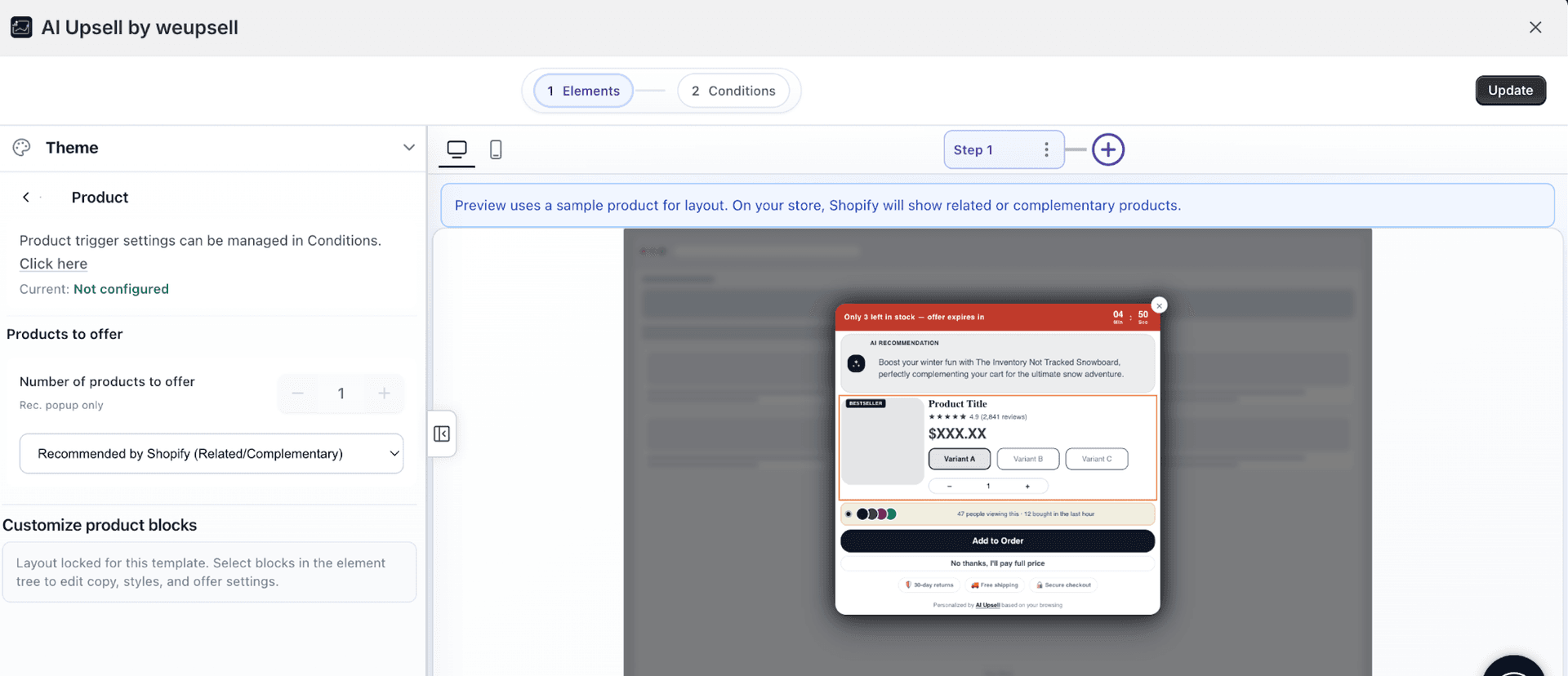
This is the key setting. When you choose this option, Shopify automatically figures out which product goes best with whatever page your customer is on. You don't have to manually pair every product yourself — Shopify's AI handles it based on what customers buy and browse together.
On the right side of the editor, you'll see a live preview of your upsell. It shows you exactly what customers will see — including the timer, product card, buy button, and everything else.
Step 5 — Set When the Upsell Appears
Click the "Conditions" tab at the top of the editor. This controls when and where your upsell offer shows up.
- Where to show it: Select Product Pages. This makes the upsell appear only when someone is looking at a product — which is exactly when a recommendation makes sense.
- What triggers it: Choose Exit intent (gentlest option), or After 5 seconds. Start with exit intent if you're not sure which to pick.
- How often to show it: Set it to once per session. This means a customer sees the upsell offer once per visit — not every time they click on a product.
When you're happy with everything, click "Update" in the top right corner. Your upsell offer is now live.
What It Looks Like on Your Store
Here's a real example of this upsell in action. A customer is looking at a navy hoodie. As they're about to leave the page, an upsell overlay appears recommending a matching jacket — at 40% off.
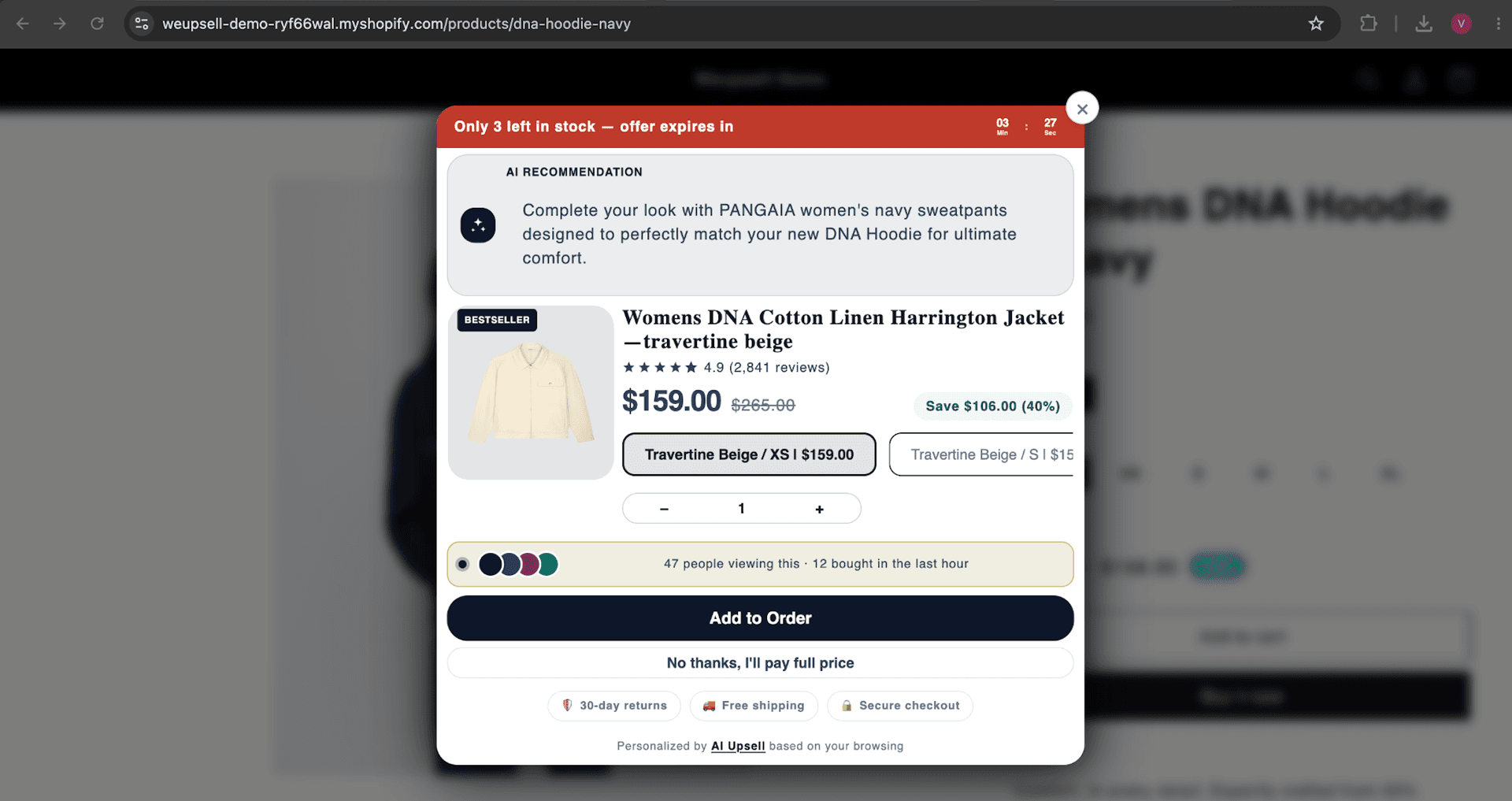
The upsell shows: a timer saying the offer expires soon; a line explaining why the jacket goes with the hoodie; the jacket's 4.9 star rating and 2,841 reviews; the price dropped from $265 to $159 — saving $106; size options to pick from right there; a big "Add to Order" button; and "No thanks, I'll pay full price" to dismiss it. It's simple, clear, and gives the customer everything they need to make a quick decision.
5 Quick Tips to Get Better Results
- Show only one product — One good recommendation converts better than three okay ones. Keep it focused.
- Add a small discount — Even 10–15% off makes the popup feel like a special deal.
- Use exit intent as your trigger — Showing the popup when someone is about to leave feels helpful, not annoying.
- Always test on mobile — More than half your visitors are probably on their phones.
- Check your results after one week — Look at impressions, clicks, and adds. If it's not working, try a different pairing or trigger timing.
Things to Avoid
- Don't show the popup the second someone lands on the page — Give them time to look at the product first.
- Don't show too many products — Stick to one recommendation. More choices = more confusion = fewer sales.
- Don't make the popup hard to close — Always keep the "No thanks" option visible.
- Don't skip testing — Open a private browser window and test the popup on a few product pages before going live.
Common Questions
Does this work on basic Shopify plans?
Yes. You don't need Shopify Plus. This works on every Shopify plan.
What if I don't have many sales yet — will Shopify know what to recommend?
Shopify's recommendations get better the more orders you have. If your store is new, the suggestions might not be perfect at first, but they improve over time. You can also manually set which product you want to recommend inside the app.
Will this slow down my store?
No. The app is built to load in the background and won't affect your store speed.
Can I see how many sales the upsell brings in?
Yes. The app has a built-in analytics section that shows impressions, clicks, and revenue from your upsell campaigns.
Can I have different upsell offers for different products?
Yes. You can create multiple campaigns and target them at different products or collections.
Wrapping Up
Adding a related product upsell to your Shopify store is one of the simplest ways to increase your average order value without spending anything extra on ads. The AI Powered Product Upsell template does all the heavy lifting — it automatically shows the right product, at the right time, with all the details a customer needs to say yes.
The whole setup takes less than 10 minutes. Install the app, pick the template, connect it to Shopify's recommendations, set your trigger, and you're done. Give it a week and see the difference it makes.