

Showing the right product recommendation at the right moment is the easiest way to increase your store's average order value. But setting up upsell and cross-sells manually for every product is exhausting.
By connecting Claude to AI Upsell & Cart ‑ WeUpsell, you can create a high-converting recommendation popup just by chatting. Simply type what you want, and Claude sets up the entire popup with relevant products, variants, and Add to Cart buttons for you.
New here? Connect Claude to your store first: How to connect MCP with AI tools.
Why an AI Recommendation Popup Works
Rather than cluttering your product page or overwhelming shoppers with endless lists, a focused recommendation popup offers several distinct conversion advantages:
- Contextual relevance: Recommends items based on what shoppers actually buy together, rather than static guesses.
- Interactive slider navigation: Keeps the popup clean and compact while letting shoppers swipe through multiple complementary options.
- Zero-friction variant selection: Shoppers can select their color, finish, or size directly inside the popup dropdown without opening another page.
- Instant Add to Cart: Single-click CTA buttons enable shoppers to bundle impulse items immediately into their active order.
Our goal: boost Average Order Value (AOV) and Units Per Transaction (UPT) by presenting the perfect complementary additions right when buying intent is highest.
The Final Result
Here is how the AI recommendation popup looks on a live storefront (demonstrated on jewelry brand Diorin, but the same popup automatically adapts to your store's theme and product catalog):
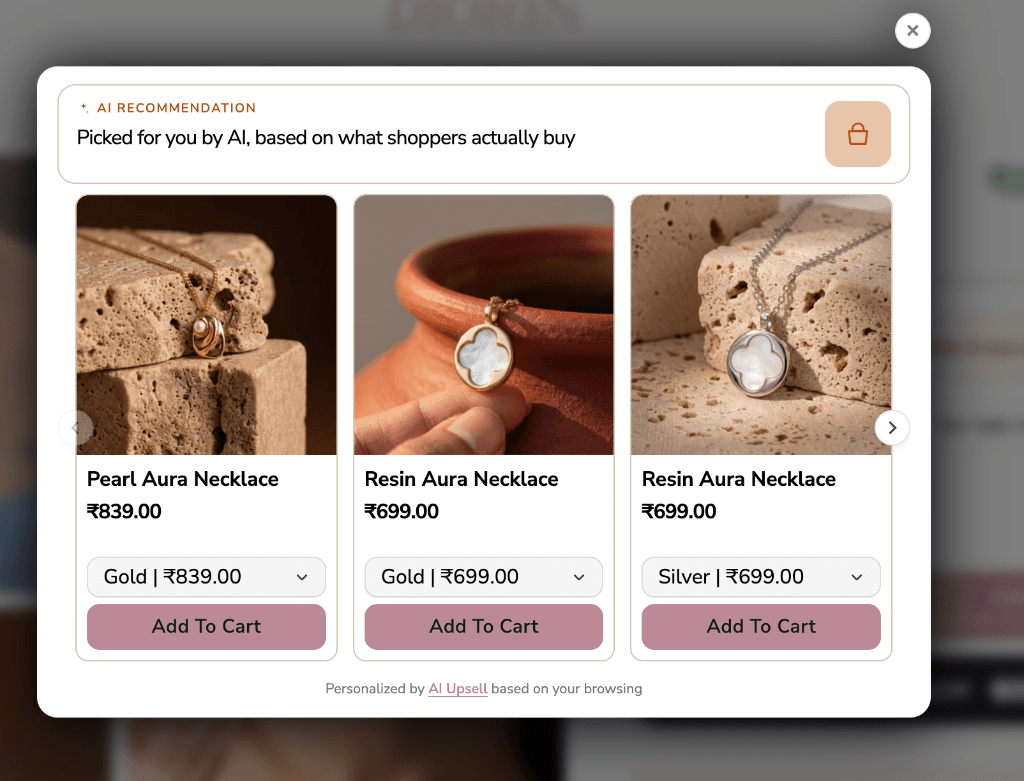
Notice how every element of the popup is designed for high intent and minimal friction:
- Smart AI Pitch Line: The header prominently displays '✦ AI RECOMMENDATION: Picked for you by AI, based on what shoppers actually buy' to establish instant social proof and algorithm-backed credibility.
- 3-Product Slider Navigation: Sleek navigation arrows (`<` and `>`) allow customers to smoothly browse recommendations on mobile and desktop without cluttering the screen.
- Inline Variant Picker: Shoppers pick material finishes (e.g., Gold vs. Silver) right in the card dropdown.
- Branded 'Add To Cart' CTA: Cohesive styling (dusty rose rounded buttons) guides the buyer naturally toward action.
- Subtle Attribution Footer: 'Personalized by AI Upsell based on your browsing' reinforces transparency and personalization.
The Prompt We Gave Claude
"Create a recommendation popup in product page with a 3-product slider. Add a smart AI pitch line in the top header of the popup: 'Picked for you by AI, based on what shoppers actually buy'. Each product should include the product title, variant, price, compared at price, and an 'Add to Cart' CTA button. Keep it as a draft so I can review it first."
Why this prompt produces such an accurate result on the first attempt:
- Defines placement and component: Tells Claude to generate a popup specifically for the product page layout.
- Specifies the slider format: Asking for a '3-product slider' ensures Claude selects a multi-item carousel rather than a single static block.
- Sets the exact AI pitch line: Gives Claude the specific customer-facing value proposition for the top container.
- Details product card anatomy: Explicitly calls for title, variant selector dropdown, live price, compare-at strikethrough, and CTA button.
- Requests a draft first: Keeps your live storefront safe until you review the configuration in your dashboard.
What Claude Did Behind the Scenes
- Queried AI Upsell & Cart ‑ WeUpsell's MCP tools to retrieve available popup templates and selected the 3-item recommendation slider.
- Created a draft campaign linked to your store's product page trigger.
- Configured the AI recommendation engine to match complementary accessories based on customer browsing and purchase patterns.
- Formatted each product card with variant selectors, price tags, and 'Add to Cart' action handlers.
- Styled the top header bar with the sparkle badge and smart AI pitch line, then returned a complete draft summary for review.
Review Before You Publish
Before setting any campaign live on your store, review the drafted popup in your AI Upsell & Cart ‑ WeUpsell dashboard. Confirm that:
- The recommended products feel natural and relevant to the items being viewed.
- Variant dropdowns correctly display your store's real variant options (colors, sizes, finishes) and real-time inventory.
- Prices and compare-at discount strikethroughs render accurately.
- The slider navigation is smooth on mobile touch screens as well as desktop screens.
When you're ready to make it live, simply tell Claude:
"Looks good. Publish this recommendation popup."
Refine It with Follow-Up Prompts
Once your initial draft is created, you can customize every detail through conversational follow-ups. Here are the most effective ways to modify and expand your recommendation popup:
1. Change the Recommendation Algorithm or Targeting Logic
Control which products get recommended and who sees the popup:
- Collection-Based Offer Rules: Set conditional rules to recommend items from specific collections or price tiers (e.g. 'Flat at 999').
- Frequently Bought Together: Products historically purchased alongside the viewed item.
- Complementary Categories: Products from matching collections (e.g. recommend earrings or necklaces when viewing rings).
- High-Margin Best Sellers: Prioritize top-performing items that boost profitability.
Prompts to adjust the recommendation logic:
"Set up an offer rule for my product page recommendation popup. When a customer is viewing any product from my 'Flat at 999' collection, show relevant product recommendations from that same collection in the popup slider. For all other products, show the default offer. Keep it as a draft so I can review it first."
"Remove the offer rule for the 'Flat at 999' collection from my product page popup and revert back to the default AI recommendation."
"Only show this popup when the cart value or current product price is above ₹500."
2. Change the Layout and Visual Presentation
Depending on your brand and catalog, you can adapt the layout to add trust badges or urgency triggers:
- Trust Badges Layout: Adds reassurance icons below the product cards (30-day returns, Free shipping, Secure checkout) to eliminate buyer hesitation.
- Countdown Urgency Header: Displays a subtle timer bar to prompt immediate bundling decisions.
Prompts to change the layout:
"Update the popup layout: set badge type to 'Pill strip' and show 3 badges: '30-day returns' (Shield), 'Free shipping' (Shipping), and 'Secure checkout' (Lock)."
"Remove the trust badge pill strip from the popup layout."
"Change the top header to include a 5-minute countdown urgency timer: 'Only 3 left in stock — offer expires in 05:00'."
"Change the 3-product slider into a side-by-side 2-card comparison layout on desktop screens."
3. Customize the Color Theme, Button Style, and Styling
Easily align the popup with your brand's unique design system by describing the exact aesthetics you want:
- "Update the popup styling to match our brand palette: use dusty rose (#B57F89) for the Add to Cart buttons with white text, warm terracotta (#C86D51) for the AI recommendation tag, and rounded corners (border-radius: 8px) on all cards."
- "Change the slider navigation buttons to sleek white floating circular buttons with soft box shadows."
- "Make the modal background white with a subtle border and give the top AI header a light cream background (#FDFBF9)."
- "Use a dark charcoal (#1A1A1A) for product titles and prices, and style the Add to Cart button in a bold pill shape."
4. Add Discounts or Compare-At Strikethrough Pricing
Give customers an extra incentive to complete the bundle directly from the popup:
"Apply an automatic 10% bundle discount on any item added through this recommendation popup, and show the original price struck through next to the discounted price."
"Add a small 'Save 15%' badge in the top right corner of each product card in the slider."
What to Track After Publishing
- Popup Take Rate: The percentage of visitors viewing the popup who click 'Add to Cart' on a recommended product.
- Average Order Value (AOV): Compare the average basket size of orders containing a popup recommendation against baseline orders.
- Units Per Transaction (UPT): Monitor whether single-item checkouts decrease as complementary bundling increases.
- Slider Interaction Rate: Track how many shoppers swipe to the 2nd and 3rd cards to identify your strongest recommendations.
You can also ask Claude directly for an analytics breakdown from AI Upsell & Cart ‑ WeUpsell: 'How has my AI recommendation popup performed over the last 14 days, and which product had the highest conversion rate?'
Try It on Your Own Store
- Connect Claude to AI Upsell & Cart ‑ WeUpsell with MCP.
- Paste the primary prompt from this guide and customize the pitch line and slider elements for your brand.
- Review the drafted campaign in your AI Upsell & Cart ‑ WeUpsell dashboard.
- Refine colors, layout, and recommendation algorithms using follow-up prompts.
- Publish when you are ready to start driving higher AOV.
Up next in this series: Boost order volume with tiered discounts across your catalog → How to Create a Shopify Volume Discount with AI.
How does the AI determine which products to show in the 3-product slider?
AI Upsell & Cart ‑ WeUpsell analyzes your store's historical purchase behavior, cart co-occurrences, and customer browsing patterns to dynamically select products with the highest probability of being purchased together.
Can shoppers pick different sizes or colors directly in the popup?
Yes! The 3-product slider includes an inline variant dropdown picker for each item, so shoppers can choose their preferred variant (like Gold vs. Silver or Size M vs. L) and add it immediately without navigating away from the current page.
Does the recommendation popup work seamlessly on mobile screens?
Absolutely. The slider is fully touch-responsive with smooth horizontal swipe support, ensuring mobile shoppers get an intuitive experience without feeling overwhelmed.
Can I apply special discounts to products recommended in the popup?
Yes. You can instruct Claude to attach an exclusive discount (such as 10% off) for items added via the popup, with automatic strikethrough comparison pricing shown on each card.
Do I need any coding knowledge or theme modifications to set this up?
No coding is required. AI Upsell & Cart ‑ WeUpsell integrates with Shopify via app embeds and connects to Claude through Model Context Protocol (MCP). You configure and launch campaigns entirely through natural conversation.